How to Migrate Your Photos from Dropbox to SmugMug
Learn how to transfer your photos and videos from Dropbox to SmugMug using Folio — folder structure preserved, EXIF data intact, no files modified in your Dropbox.
Dropbox migration is a Pro feature and requires a Folio license.
There is no built-in transfer tool between Dropbox and SmugMug, but Folio makes the migration seamless. Folio connects directly to your Dropbox account via the Dropbox API, downloads your original photos and videos, and uploads them to SmugMug — preserving your folder structure and all EXIF metadata (dates, GPS coordinates, camera info).
Unlike Google Photos, Dropbox stores original files with their EXIF data intact, so there's no need for a separate metadata patching step. What you have in Dropbox is exactly what lands on SmugMug.
Before you begin, make sure you have:
- Folio installed and running on your Mac
- Signed in to your SmugMug account inside Folio
- A Dropbox account with the photos you want to migrate
- A stable internet connection — Folio downloads files from Dropbox and uploads them to SmugMug in sequence
You do not need the Dropbox desktop app installed. Folio connects directly to Dropbox's cloud API.
Open the migration window
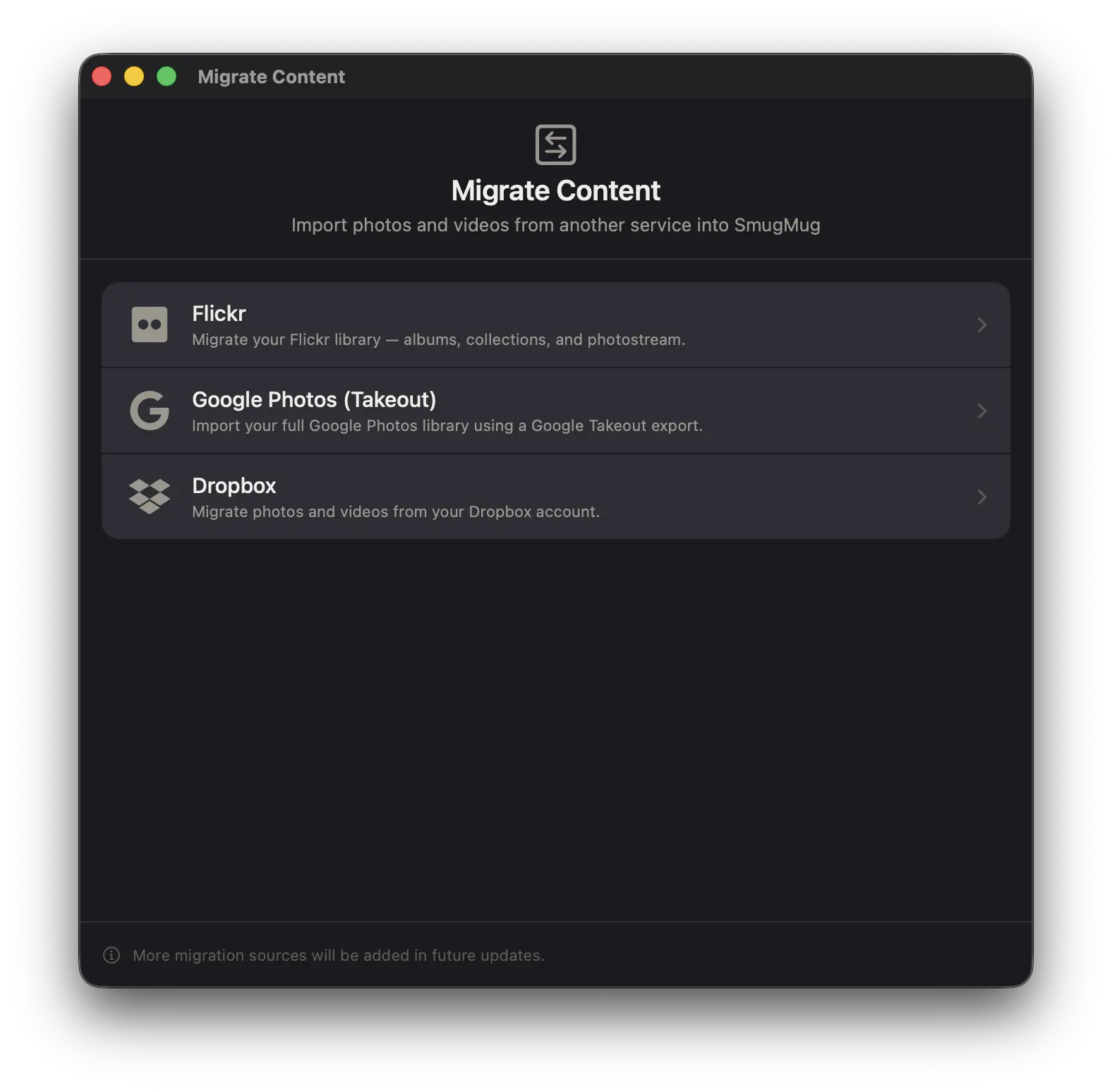
From the menu bar, go to File → Migrate From... (or press Cmd+Shift+M).
This opens the Migrate Content window. Select Dropbox as your migration source.
Sign in to Dropbox
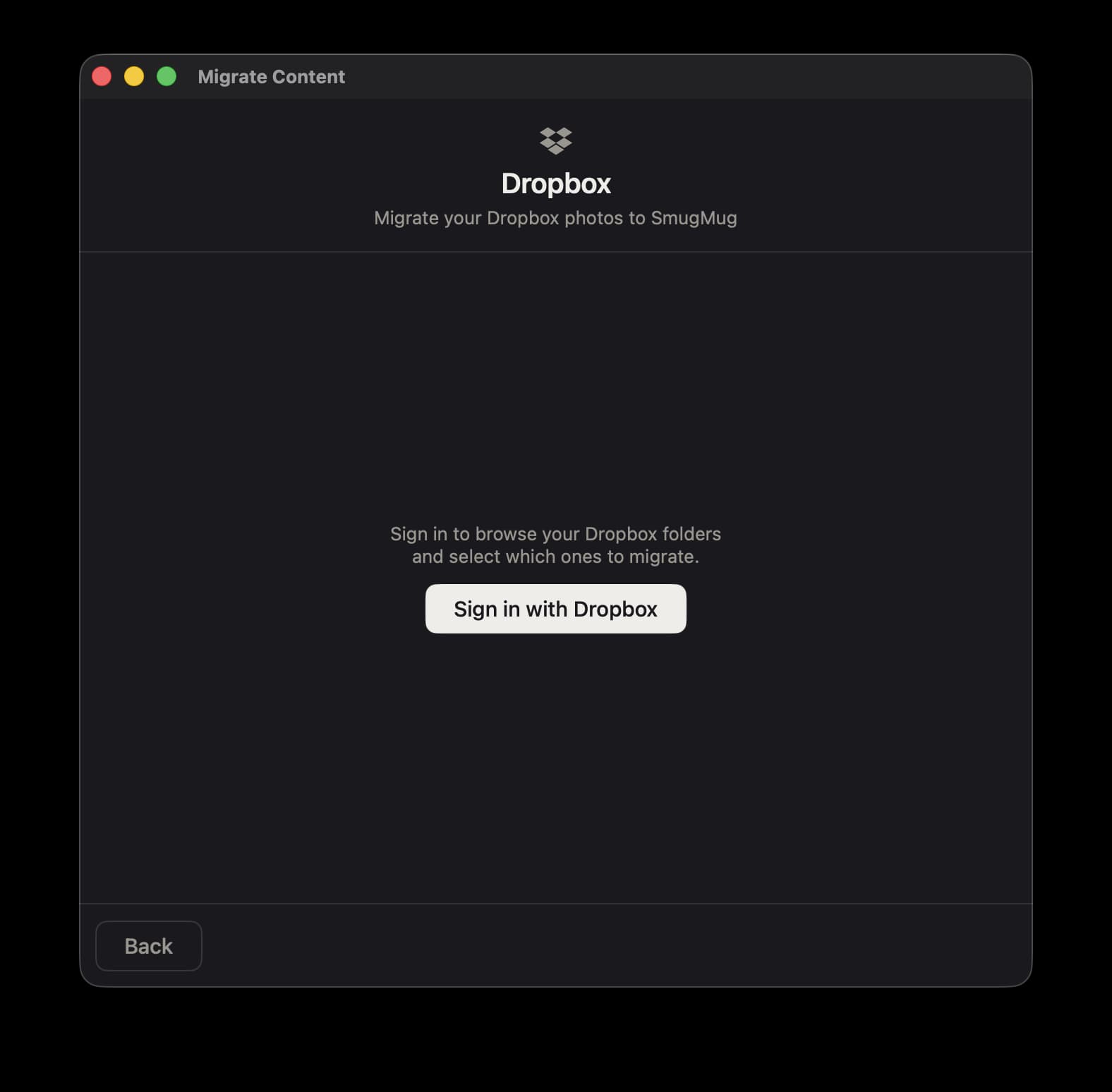
Click "Sign in with Dropbox". Your browser opens to Dropbox's authorization page.
- Sign in with your Dropbox account (if not already signed in)
- Review the permissions — Folio requests read-only access to your files
- Click "Allow"
The browser shows an "Authorization successful" confirmation and you can close the tab. Back in Folio, you'll see a green checkmark with your Dropbox display name.
Folio requests two read-only permissions: files.metadata.read (browse folder names and file sizes) and files.content.read (download file contents during migration). Folio never writes to, modifies, or deletes anything in your Dropbox. Your access token is held in memory only and is discarded when you close the migration window.
Select folders to migrate
After signing in, Folio shows your Dropbox folder tree with checkboxes. Browse and check the folders you want to migrate.
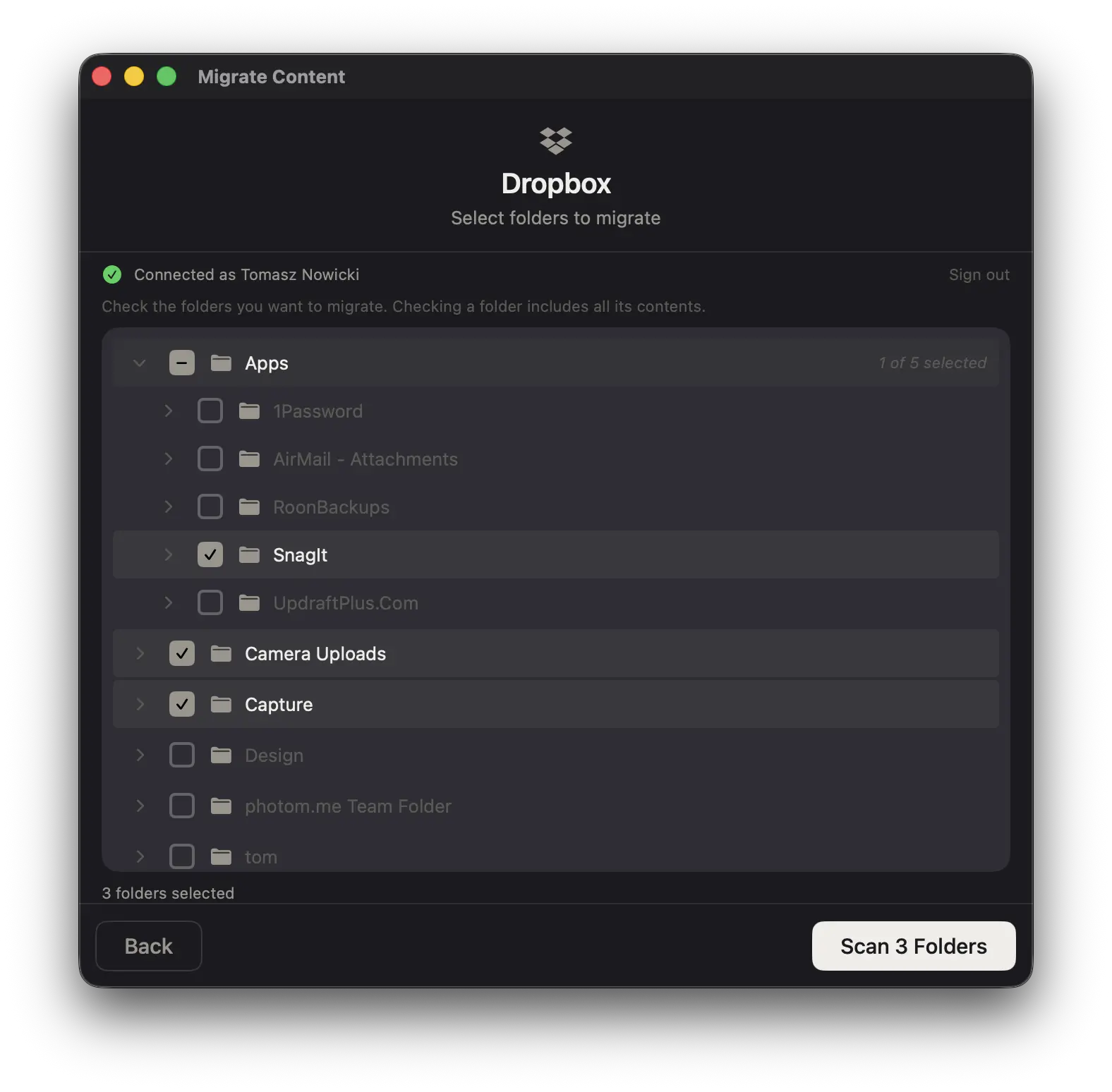
- Check a folder to include it and all its contents
- Expand a folder (click the chevron) to see and select individual subfolders
- Uncheck a parent to deselect it and all its children
- Mixed state (dash icon) means some children are selected and some aren't — the count shows "2 of 5 selected"
You can select multiple folders across different parts of your Dropbox. For example, check "Camera Uploads" and "Vacation Photos" without selecting the unrelated "Work Documents" folder in between.
The "Scan N Folders" button at the bottom shows how many folders are selected.
You don't need to select everything at once — you can run multiple migrations. Folders are loaded lazily as you expand them, so even large Dropbox accounts browse quickly. Non-photo files (documents, spreadsheets, etc.) are automatically filtered out during scanning.
Scan selected folders
Click "Scan N Folders". Folio scans each selected folder via the Dropbox API and builds a migration plan.
During the scan:
- Files are filtered against your SmugMug account's allowed upload types (SmugMug Source subscribers will see RAW formats included automatically)
- The folder hierarchy is preserved — subfolders become SmugMug folders, leaf folders with media become galleries
- Loose files at the root of a selected folder are collected into a gallery named after that folder
Review the migration preview
After scanning, you'll see a migration preview with summary cards showing the total number of folders, galleries, and files to migrate, along with a tree view of the planned SmugMug structure:
Dropbox Migration/                        (Private folder)
├── Camera Uploads/ (2,341 files)
└── Design/
    ├── Product Shots/ (89 files)
    └── Headshots/ (45 files)
A few things to be aware of:
- Auto-split — Galleries with more than 4,990 photos are automatically split into numbered parts (e.g., "Camera Uploads (Part 1)", "Camera Uploads (Part 2)") because SmugMug has per-gallery limits
- Depth limit — SmugMug allows 8 levels of folder nesting. Items exceeding this are marked as skipped with an amber warning
- Privacy — All created folders and galleries are set to Private by default
- URL slug deduplication — If two folders would produce the same URL slug, Folio appends a number (e.g.,
photos,photos-2) - File type filtering — Only files matching your SmugMug account's accepted types are included. Unsupported formats are counted in the "skipped" total
Start the migration
Click Start Migration. For each gallery, Folio performs two phases:
- Create folder structure — The "Dropbox Migration" parent folder and all child folders/galleries are created on SmugMug, matching the plan tree
- Download and upload — Original files are downloaded from Dropbox to a temporary folder on your Mac, uploaded to the corresponding SmugMug gallery, and temporary files are cleaned up after each gallery completes
The gallery label shows the current phase: "Camera Uploads — Downloading from Dropbox" then "Camera Uploads — Uploading to SmugMug".
During migration, you'll see an overall progress bar with file count (e.g., "847 of 2,341 files"), elapsed time, and stats for galleries completed, files uploaded, and any failures. You can Pause to temporarily stop the operation, or Cancel Migration to stop everything and clean up temporary files.
Files are downloaded with integrity verification — Folio checks each file's content hash against Dropbox's expected hash to ensure nothing was corrupted in transit.
Review the results
When finished, you'll see a summary showing total photos migrated, galleries completed, any failures or skips, and total data transferred with elapsed time.
From here you can close the window and browse your new SmugMug galleries, or click Migrate More to import additional Dropbox folders.
Troubleshooting
| Problem | Solution |
|---|---|
| "Authorization expired" | Dropbox access tokens expire after a period of inactivity. Click Retry — you'll be prompted to sign in again, and the migration resumes where it left off. |
| Migration interrupted | Click Retry on the failure screen. Duplicate detection ensures already-uploaded photos are skipped, so you can safely re-run without getting double uploads. |
| Some files were skipped | SmugMug only accepts certain file types. Certain RAW formats (CR3, ARW, etc.) may require a SmugMug Source subscription. Check the skipped count in the preview. |
| Individual file failures | If a single file fails to download from Dropbox (network hiccup, rate limit), Folio logs it and continues with the next file. The failure count is shown in the stats. |
| Brief pauses during migration | Dropbox limits API calls to approximately 1,000 per minute. Folio handles this automatically — if rate-limited, it waits and retries transparently. |
No data is modified in Dropbox. This is a copy operation — your Dropbox files remain untouched. EXIF metadata (dates, GPS, camera info) transfers directly to SmugMug since Dropbox stores original files. Your Dropbox access token is held in memory only and discarded when you close the migration window, so each session requires a fresh sign-in. It's safe to run multiple migrations — they all go under the same "Dropbox Migration" folder on SmugMug.