How to Use Facebook Debugger to Fix Link Previews
Fix incorrect thumbnails, titles, and descriptions when sharing SmugMug links on Facebook using the Facebook Sharing Debugger tool.
When you share a SmugMug gallery or photo link on Facebook, you might see incorrect or outdated thumbnails, titles, or descriptions. Facebook Debugger lets you refresh the metadata Facebook uses for your links.
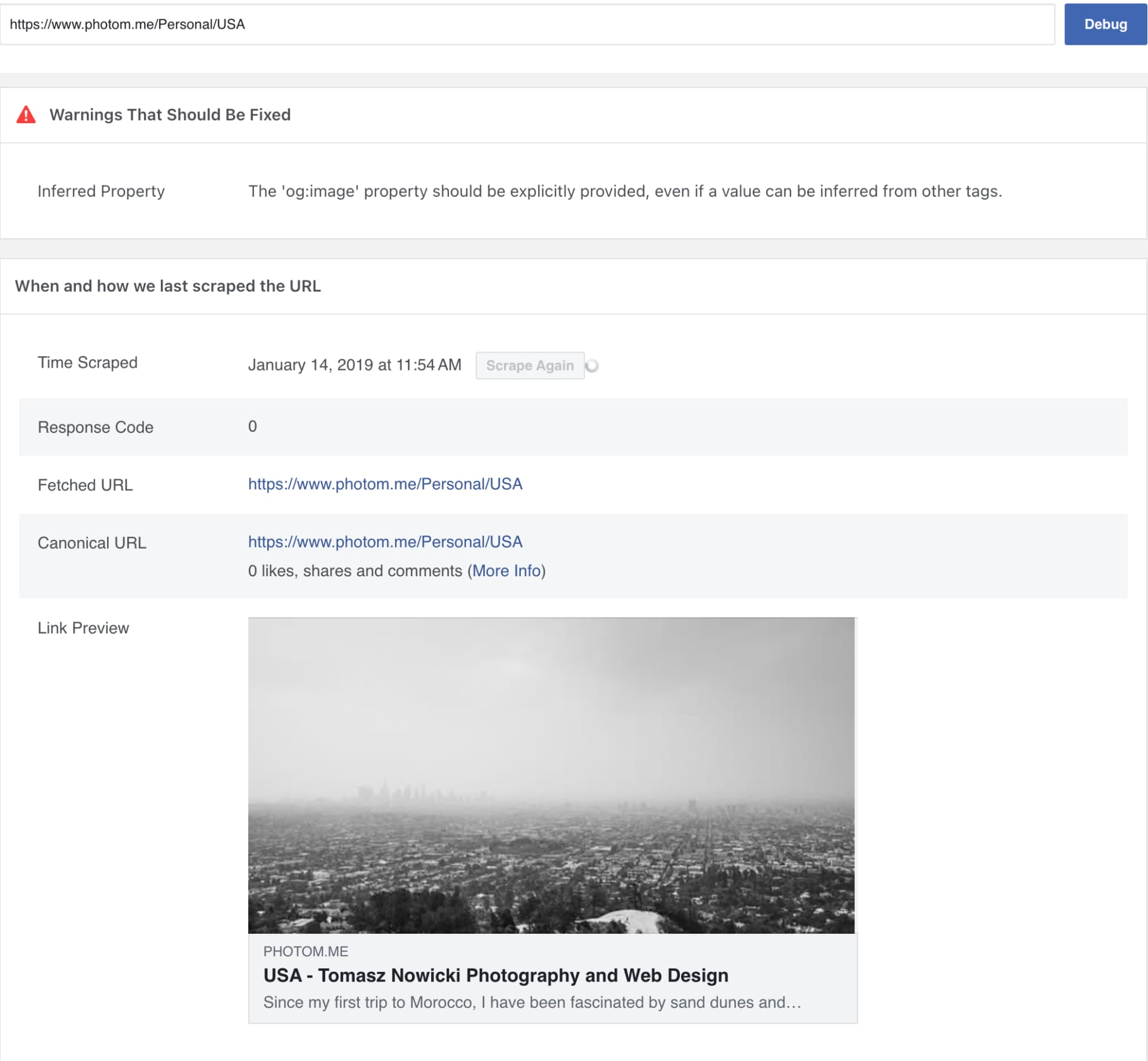
When to use Facebook Debugger
Use this tool when:
- The wrong image appears in link previews
- The title or description is outdated
- You've updated your SmugMug content but Facebook shows old information
- A link preview is completely broken or missing
Copy your SmugMug URL
Go to your SmugMug website and copy the URL of the gallery, photo, or page you want to share.
Open Facebook Debugger
Visit the Facebook Sharing Debugger. You'll need to log in with a Facebook account.
Paste and debug your URL
- Paste your SmugMug link in the URL field
- Click Debug
Facebook will analyze the link and display the cached metadata including title, description, and thumbnail image.
Review the results
Check these key elements:
- Title: Is the page title accurate?
- Description: Does it match your SmugMug content?
- Image/Thumbnail: Is the correct image displaying?
Scrape again if needed
If the information is outdated, click Scrape Again. This forces Facebook to fetch fresh metadata from your SmugMug page.
You may need to click Scrape Again 2-3 times to fully clear Facebook's cache.
Understanding the debug output
The debugger shows several useful pieces of information:
og:title
The title that appears in link previews. On SmugMug, this comes from your gallery or page title.
og:description
The description shown below the title. This is pulled from your gallery or page description.
og:image
The thumbnail image used in previews. SmugMug typically uses your gallery's first image or featured image.
Warnings and errors
Pay attention to any warnings about missing or incorrectly sized images. Facebook recommends images at least 1200 x 630 pixels for best display.
Changes you make in SmugMug won't immediately appear on Facebook. Always use the debugger to force a refresh after updating your content.
Common issues and solutions
Wrong thumbnail showing
- Make sure your gallery has the correct featured image set
- Use the debugger to scrape again multiple times
- Wait 24 hours and try again if the old image persists
No image appearing
- Ensure your gallery isn't password protected
- Verify the gallery has at least one visible image
- Check that your SmugMug site is on a paid plan (not trial)
Title or description incorrect
- Update the gallery/page settings in SmugMug
- Publish your changes
- Use the debugger to scrape the fresh content
Best practices
- Debug before sharing: Always check your link in the debugger before posting to Facebook
- Use descriptive titles: Clear, engaging titles improve click-through rates
- Set featured images: Choose compelling cover images for your galleries
- Keep descriptions concise: Facebook truncates long descriptions in previews