How to Add Your SmugMug Website to Google Search Console
Step-by-step guide to verifying your SmugMug website with Google Search Console to monitor search performance and improve SEO.
Google Search Console is a free tool that helps you monitor your site's presence in Google Search results. By connecting your SmugMug website, you can see how your site performs in search, identify issues, and submit your sitemap for faster indexing.
Prerequisites
- A SmugMug account (paid plan, not trial)
- A Google account
Access Google Search Console
Go to Google Search Console and sign in with your Google account. Click Start now if you're new to Search Console.
Add your property
- Click the property selector dropdown at the top of the page
- Click Add property
- Choose URL prefix (not Domain)
- Enter your SmugMug website URL:
- SmugMug subdomain:
https://yourname.smugmug.com - Custom domain:
https://www.yourcustomdomain.com
- SmugMug subdomain:
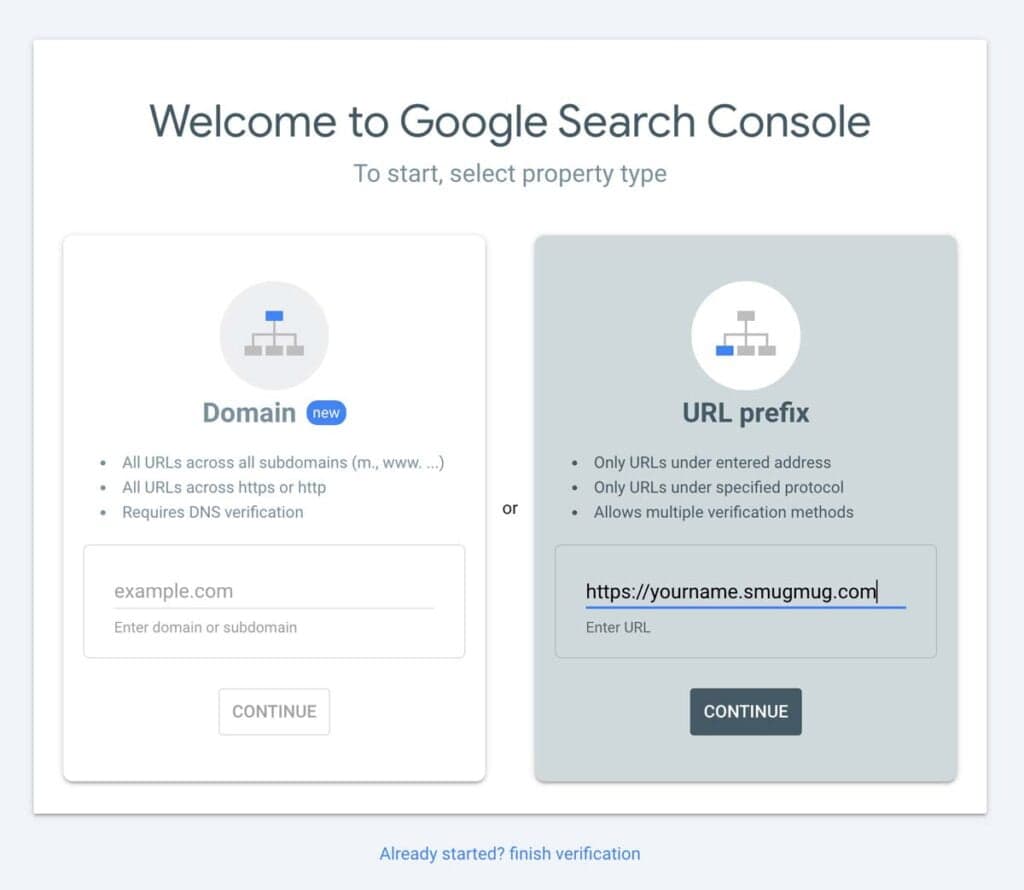
- Click Continue
Verify ownership with HTML tag
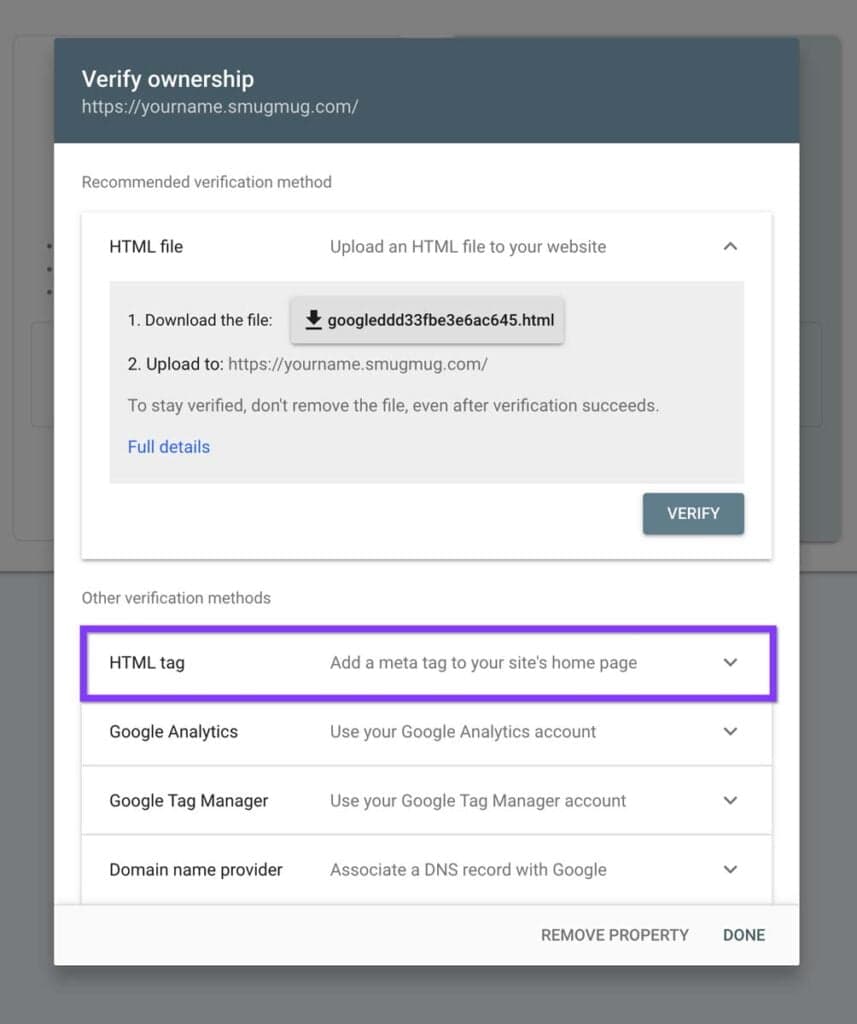
Google offers several verification methods. For SmugMug, the HTML tag method is easiest:
- On the verification page, select HTML tag
- Copy the meta tag provided by Google
Add the tag to SmugMug
- Log in to your SmugMug account
- Go to Account Settings
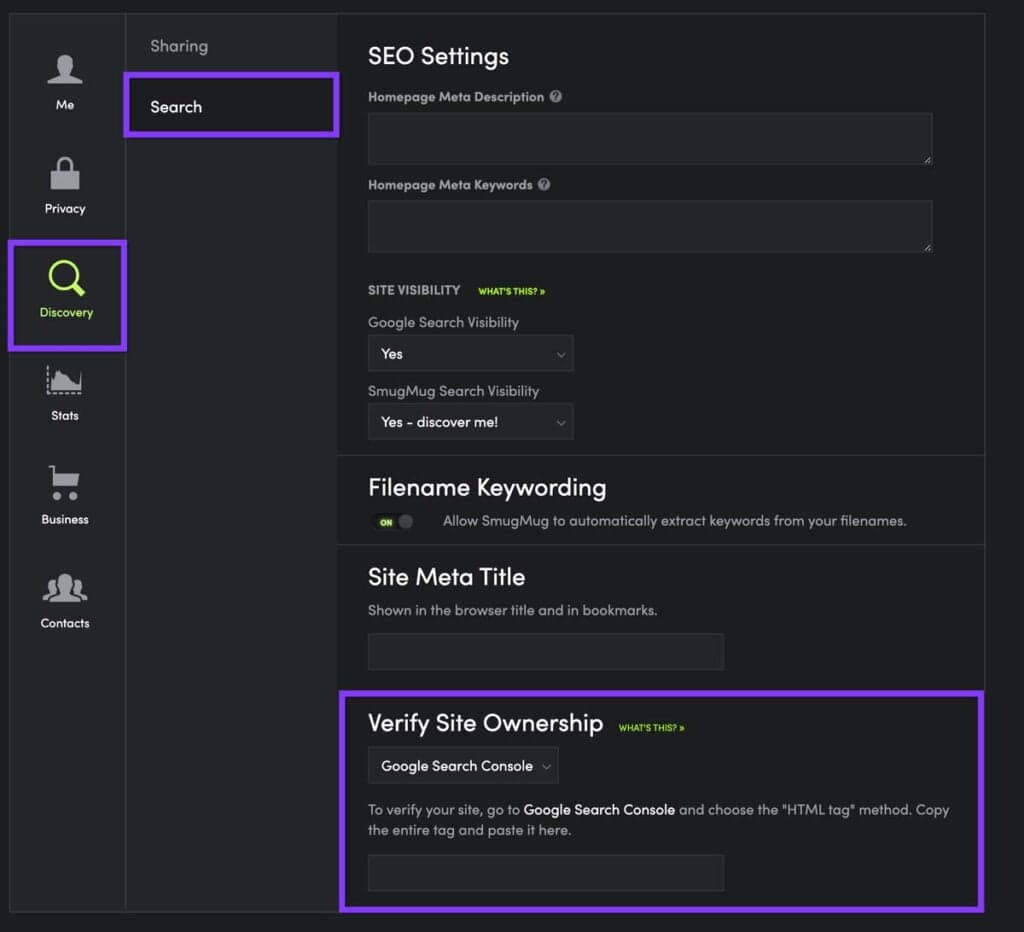
- Navigate to Discovery → Search → Verify Site Ownership
- Choose Google Search Console
- Paste the meta tag into the field
- Save your changes
Complete verification
Return to Google Search Console and click Verify. If successful, you'll see a confirmation message.
If verification fails, wait a few minutes and try again. Changes can take up to 72 hours to propagate, though it's usually much faster.
What to do after verification
Submit your sitemap
Once verified, submit your sitemap to help Google discover all your pages:
- In Search Console, click Sitemaps in the left menu
- Enter your sitemap URL:
sitemap-index.xml - Click Submit
Your full sitemap URL is:
https://yourname.smugmug.com/sitemap-index.xml- Or with custom domain:
https://www.yourcustomdomain.com/sitemap-index.xml
Monitor performance
Check Search Console regularly to:
- See which search queries bring visitors to your site
- Identify pages with crawling issues
- Monitor your site's indexing status
- View mobile usability reports
It takes time for data to appear in Search Console after initial setup. Check back after a week or two for meaningful insights.
Troubleshooting
Verification keeps failing
- Double-check you copied the complete meta tag
- Ensure you saved changes in SmugMug
- Wait 24-72 hours and try again
No data showing
- Data collection starts after verification
- Allow 3-7 days for initial data to appear
- Some sites with low traffic may have limited data
How to Use Facebook Debugger to Fix Link Previews
Fix incorrect thumbnails, titles, and descriptions when sharing SmugMug links on Facebook using the Facebook Sharing Debugger tool.
Complete SEO & Marketing Guide for SmugMug Photographers
A comprehensive guide to optimizing your SmugMug site for search engines, driving traffic, and converting visitors into paying clients.