How to Manually Point a GoDaddy Domain to SmugMug
Step-by-step guide to manually configure your GoDaddy domain to work with SmugMug when the automatic connector doesn't work.
SmugMug offers an automatic GoDaddy connector that configures your domain settings. However, if the connector doesn't work for your domain, you can manually set up the DNS records by following this guide.
Before using this manual method, try SmugMug's automatic GoDaddy connector first. Go to Account Settings → Custom Domain and follow the GoDaddy connection prompts.
Log in to GoDaddy
- Go to GoDaddy.com and sign in
- Click your name in the upper-right corner
- Select My Products
- Find your domain and click the DNS button

Configure the CNAME record
You'll see a list of DNS records. Find the www CNAME record and click the edit (pen) icon.
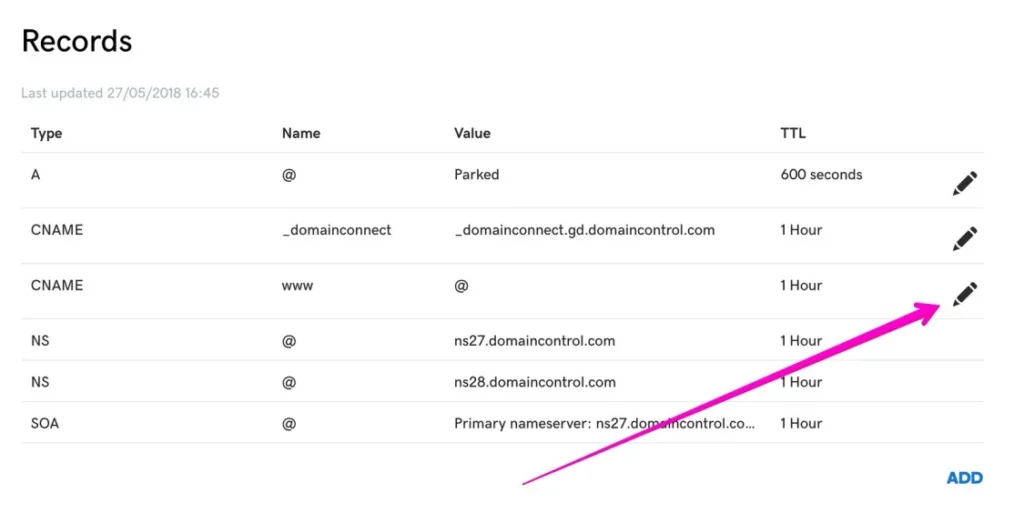
Update the record to point to SmugMug:
- Name/Host: www
- Value/Points to:
domains.smugmug.com - TTL: Default or 1 hour
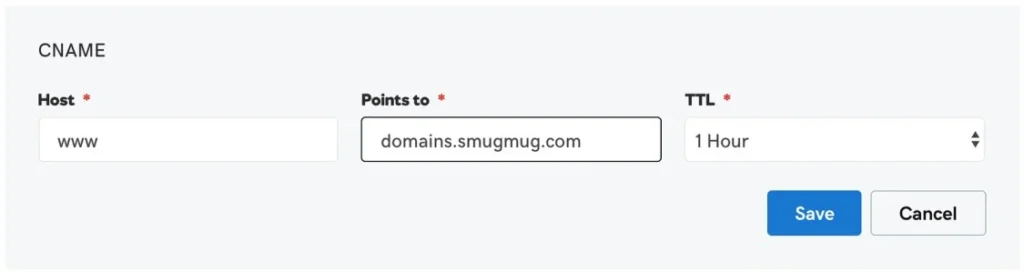
Click Save.
Point your domain to exactly domains.smugmug.com — not your SmugMug website address.
Set up domain forwarding
For your domain to work both with and without "www", you need to configure forwarding.
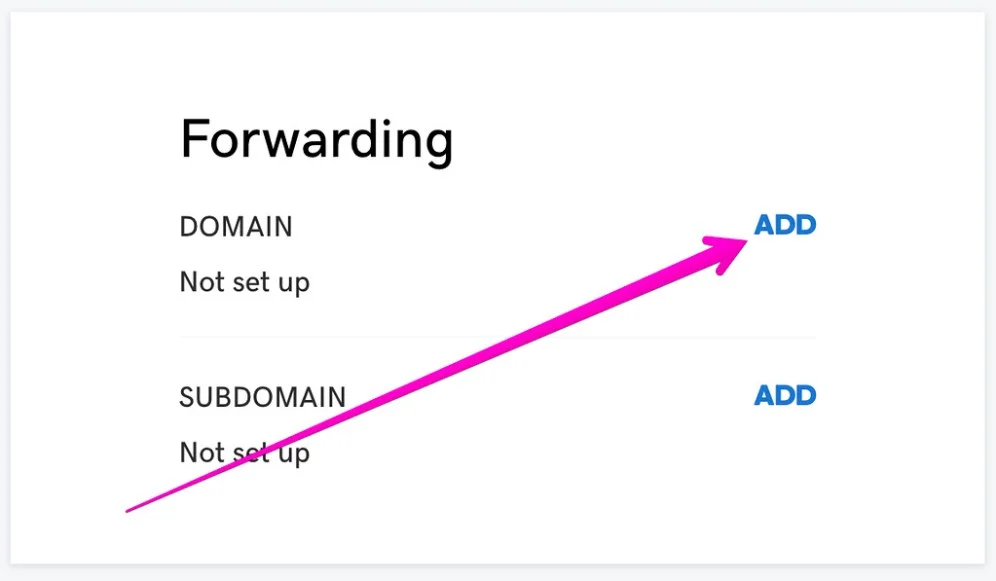
On the same DNS page, scroll down to the Forwarding section and click Add.
Configure the forwarding:
- Forward to:
https://+www.yourdomain.com - Forward type: Permanent (301)
- Settings: Forward only
- Check: Update my nameservers and DNS settings to support this change
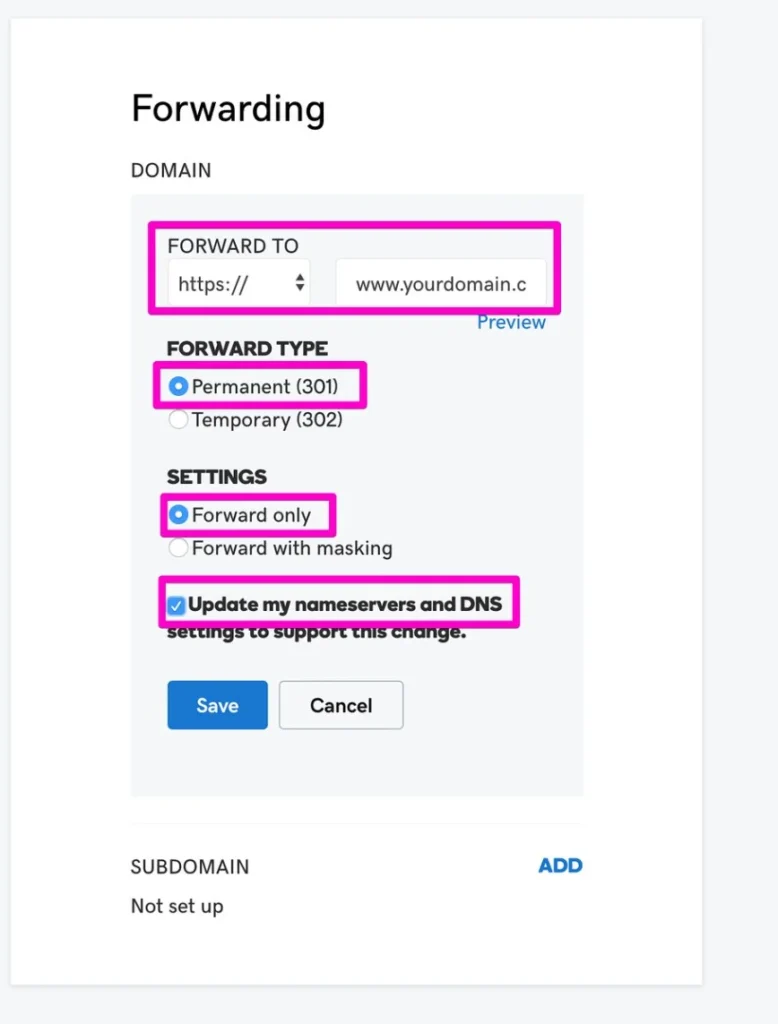
Click Save.
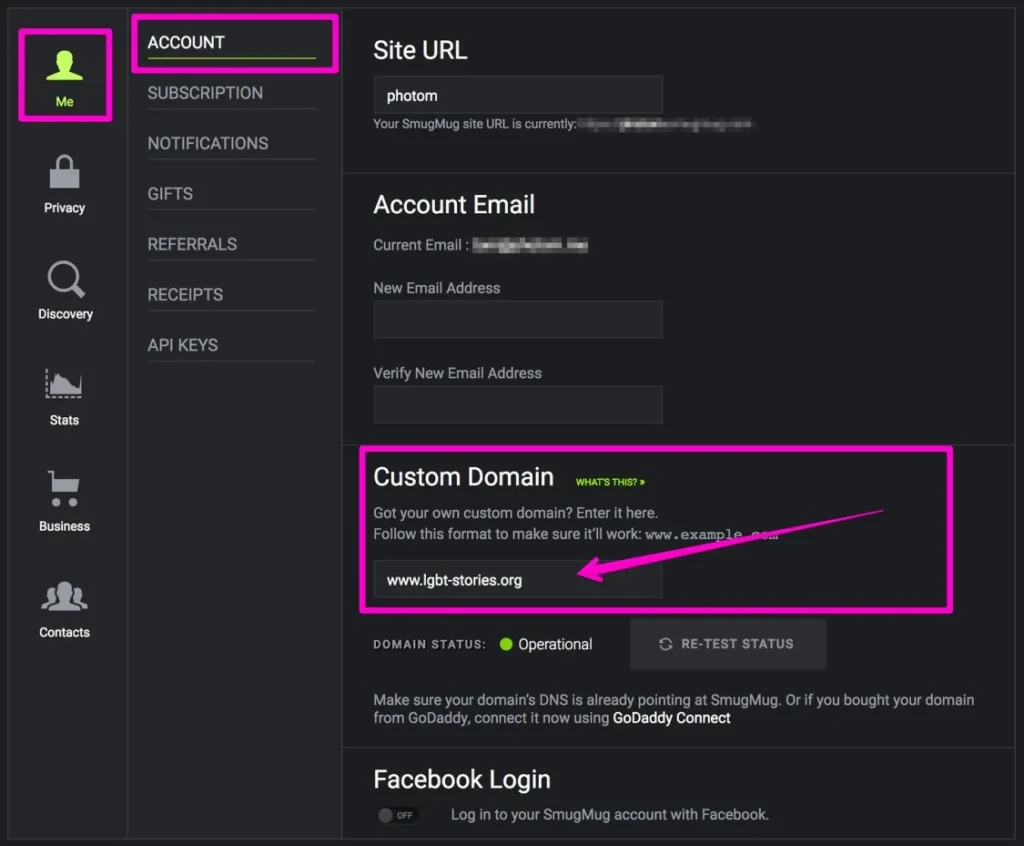
Add the domain in SmugMug
- Log in to your SmugMug account
- Go to Account Settings → Custom Domain
- Enter your domain with "www":
www.yourdomain.com - Click Save & Exit
Wait for propagation
DNS changes can take up to 72 hours to propagate worldwide. During this time:
- You may see intermittent errors
- Some visitors might reach your site while others can't
- The SSL certificate needs time to generate
If you see an error when adding the domain to SmugMug, wait a few hours and try again.
Troubleshooting
"Your connection is not private" error
This typically means the SSL certificate hasn't been generated yet. Wait 24 hours. If it persists, contact SmugMug Support to manually generate the certificate.
Domain not working after 72 hours
Use a tool like NSLOOKUP to verify your CNAME record is correct. If it shows something other than domains.smugmug.com, double-check your GoDaddy settings.
Non-www version shows an error
This is expected if you haven't set up forwarding. The SSL certificate only covers the www version. Make sure the forwarding from your root domain to www is configured correctly.