How to Use the SmugMug Downloader
Download all your SmugMug photos, videos, and metadata with this free macOS app for Apple Silicon Macs.
SmugMug Downloader is a free macOS application that lets you backup your entire SmugMug account. Download all your photos, videos, titles, captions, and keywords while preserving your folder structure.
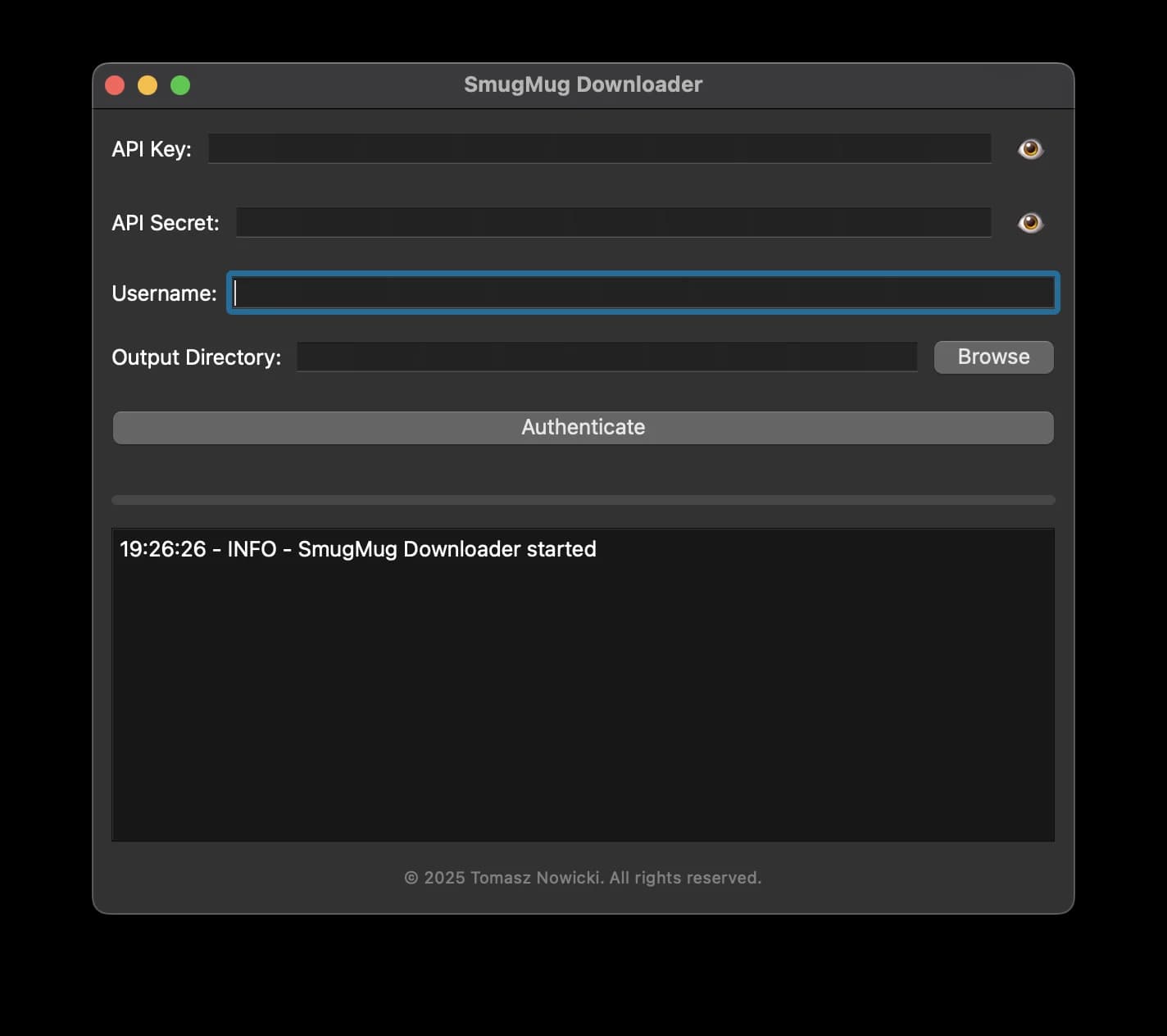
Prerequisites
Before starting, ensure you have:
- A Mac computer with Apple Silicon (M1, M2, M3, or M4 chip)
- macOS installed and updated
- A SmugMug account with content to download
- Sufficient disk space for your photos and videos
This app only works on Mac computers with Apple Silicon. It will not work on older Intel-based Macs.
Download and install the app
Download SmugMug Downloader
Visit the SmugMug Downloader page and click the download button to get the latest version of the app.
Install the application
Open the downloaded .dmg file and drag SmugMug Downloader to your Applications folder. The app requires approximately 50MB of disk space.
Launch the app
Open SmugMug Downloader from your Applications folder. On first launch, macOS may ask you to confirm opening the app since it was downloaded from the internet.
Get your SmugMug API key
To connect to your SmugMug account, you need to create an API key from your account settings.
Access SmugMug API settings
Log into your SmugMug account and apply for an API key using this link.
Fill out the API application form
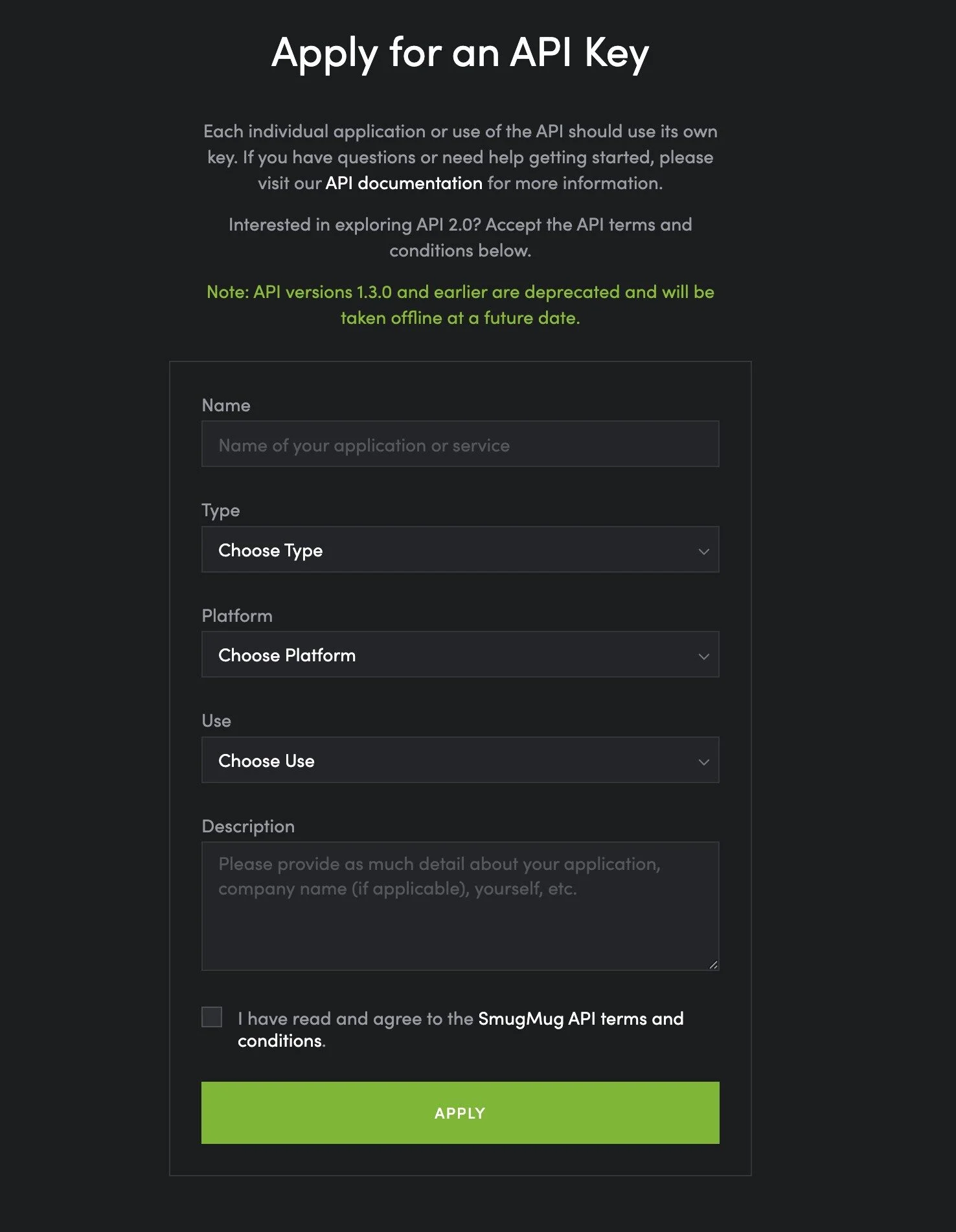
Fill out the form with the following information:
- Name: SmugMug Downloader (or any name you prefer)
- Type: Application
- Platform: Mac
- Use: Non-Commercial
- Description: Backup for my SmugMug content (or any description you prefer)
Make sure to read the SmugMug API Terms and Conditions and tick the box to confirm that you agree with them.
Copy your credentials
After submitting, you will receive two pieces of information:
- API Key - A public identifier for your application
- API Secret - A private key that should be kept confidential
Copy both the API Key and API Secret and save them securely. You will need to enter these in the SmugMug Downloader app.
Keep your API Secret private. Never share it publicly or include it in code repositories.
Connect your SmugMug account
Enter your API credentials
In SmugMug Downloader, enter your API Key and API Secret in the corresponding fields.
Enter your username
Type your SmugMug username in the username field. To find your username:
- Log in to your SmugMug account
- Go to SITE SETTINGS → SITE → GENERAL → SITE URL
- Your URL will look like
https://yourusername.smugmug.com - Copy just the
yourusernamepart and enter it in the app
Choose your output directory
Click the Browse button to select where you want your photos and videos saved. Make sure you have enough disk space for your entire collection.
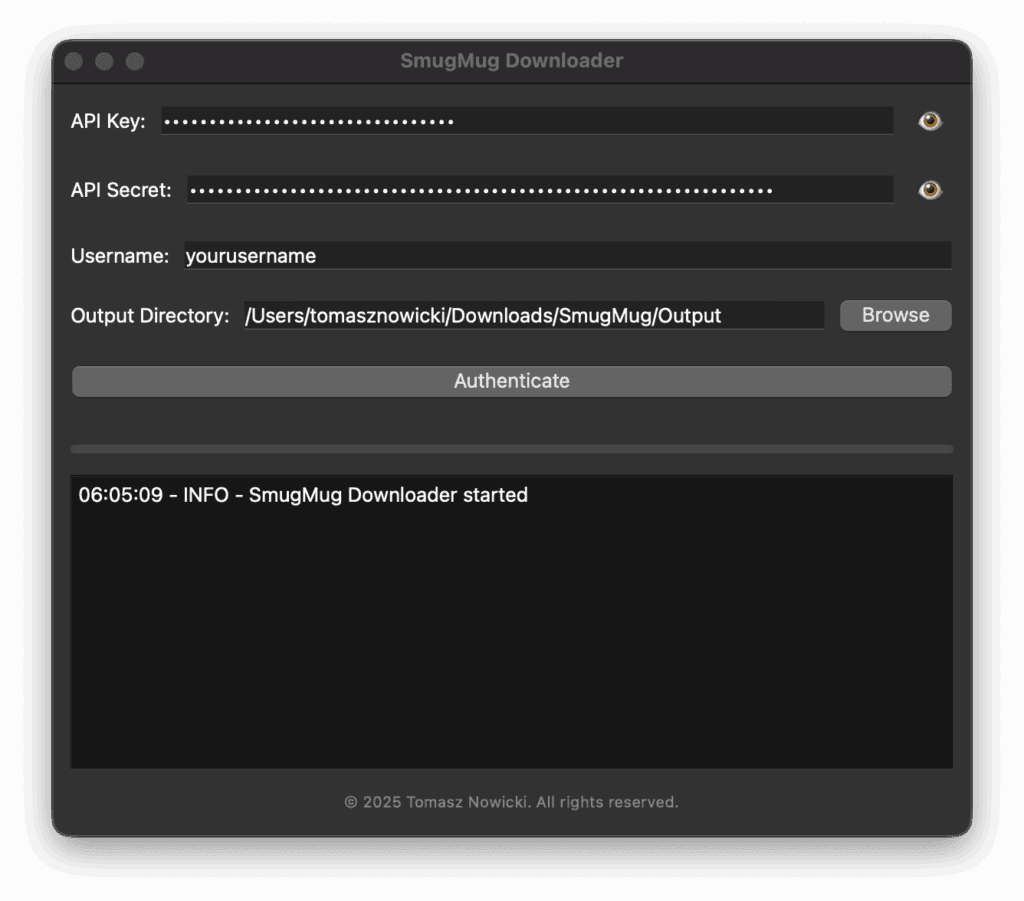
Authenticate
Click the Authenticate button to connect to your SmugMug account:
- A web browser window will open asking you to log in to your SmugMug account
- After logging in, you will receive a unique verification number
- Copy this number and paste it into the VERIFICATION CODE field in the app
- Click Submit to complete the authentication
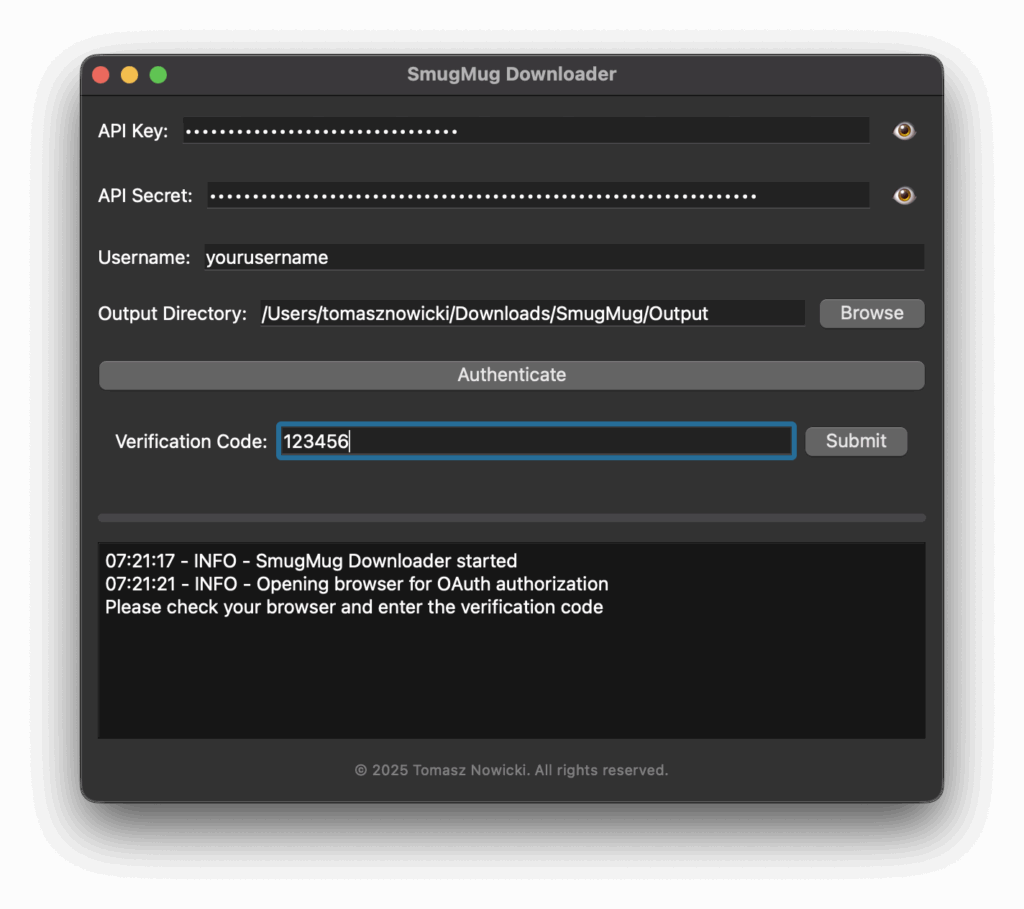
Once authenticated, your API key and secret will be stored securely in the app settings, so you won't need to re-enter them.
Download your content
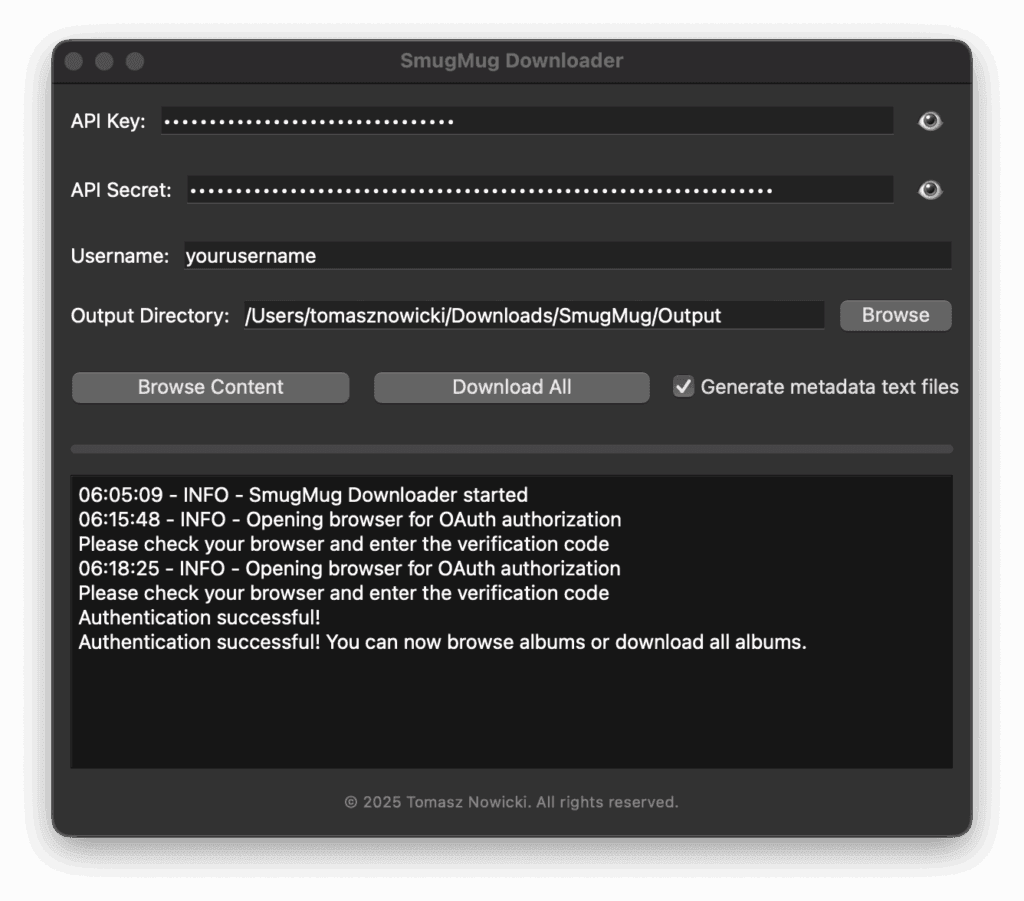
The app offers two ways to download your content:
Download All Albums
Click the Download All Albums button to download everything from your SmugMug account at once. The app will:
- Download all photos and videos
- Preserve your folder hierarchy exactly as it is on SmugMug
- Create folders for your SmugMug folders and galleries
Depending on how much content you have, this process may take a while. The app will show progress as it downloads.
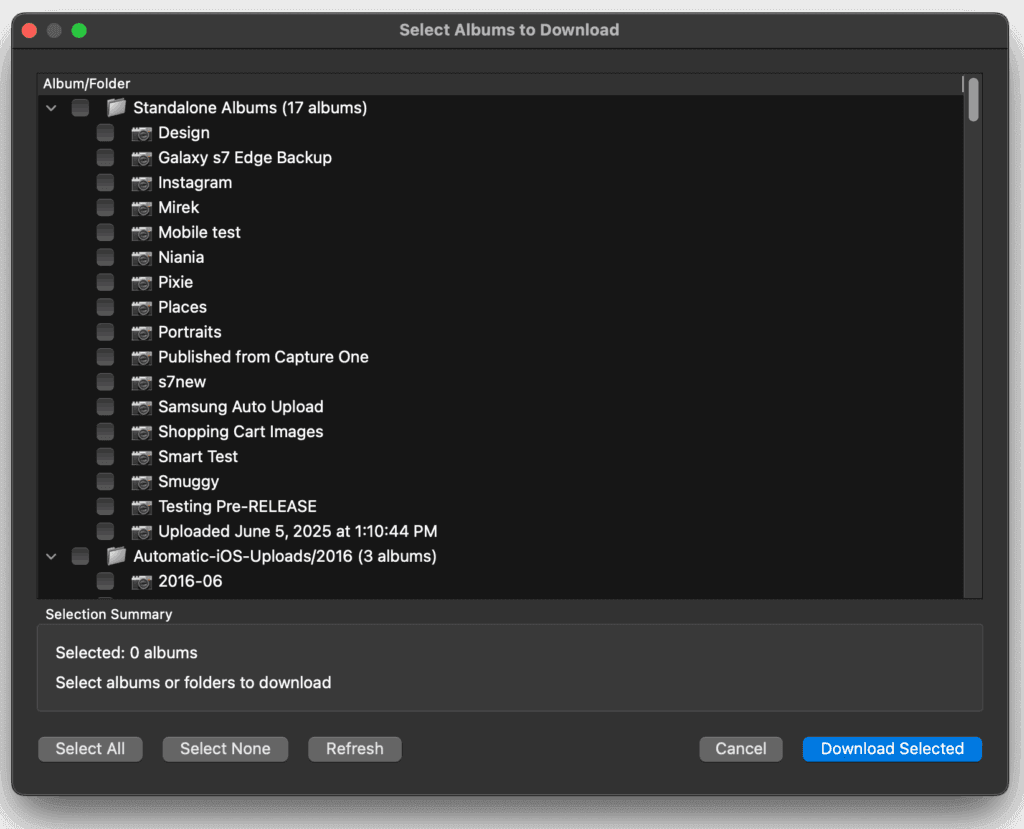
Browse Albums
Click the Browse Albums button if you want to download only specific content. This allows you to:
- View your SmugMug folder structure
- Select individual folders or galleries
- Download only what you need
This is useful when you want to backup specific events or projects without downloading your entire library.
What gets downloaded
SmugMug Downloader saves more than just your photos:
| Content Type | Description |
|---|---|
| Photos | Original resolution images in their native format |
| Videos | Full quality video files |
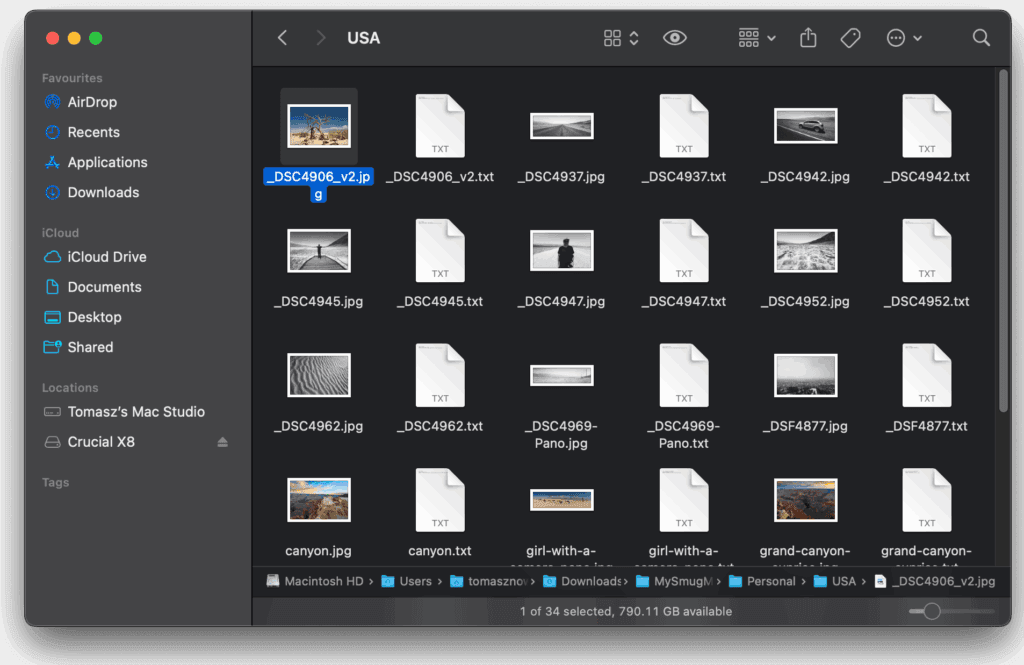
| Metadata | A TXT file alongside each photo containing title, caption, and keywords |
| Folder structure | Your SmugMug hierarchy is preserved exactly |
Generate metadata text files
This option is enabled by default. When enabled, the app creates a TXT file for every downloaded photo and video. These text files contain the TITLE, CAPTION, and KEYWORDS you've added to your media on SmugMug.
For example, if you download an image named my-photo.jpg, the app will create a corresponding text file named my-photo.txt containing all this metadata.
You can disable this option in the app settings if you don't need the metadata files.
Source files support (RAW formats like CR2, PSD, TIFF) is coming soon in a future update.
Security and privacy
SmugMug Downloader prioritizes your privacy:
- Local storage only - Your API credentials and data stay on your device
- Direct connection - The app communicates directly with SmugMug's servers
- No third parties - No data is sent to any servers except SmugMug
Troubleshooting
App won't open on first launch
- Right-click the app and select "Open" to bypass macOS Gatekeeper
- Go to System Settings > Privacy & Security to allow the app
Authentication fails
- Verify your API Key and Secret are copied correctly
- Check that your SmugMug username is correct
- Ensure you have an active internet connection
Download stops unexpectedly
- Check your internet connection
- Verify you have sufficient disk space
- Try restarting the download from where it stopped
App says "Not compatible"
- SmugMug Downloader requires Apple Silicon (M1/M2/M3/M4)
- Intel-based Macs are not supported
Frequently asked questions
Is the app really free? Yes, completely free with no subscriptions, hidden fees, or premium tiers. It's a personal project built by a photographer for photographers.
Why isn't it on the Mac App Store? Distributing through the Mac App Store requires an Apple Developer account and Apple's review process. As a free personal project, it's distributed directly.
Can I download multiple galleries at once? Yes. You can select multiple folders or your entire account. The app handles the queue and downloads them sequentially.
Is there a Windows version? Currently only macOS with Apple Silicon is supported. There are no immediate plans for a Windows version.
How to check your Mac's processor type
If you're unsure whether your Mac has an Apple Silicon or Intel processor:
- Click on the Apple menu (🍎) in the top-left corner of your screen
- Select About This Mac from the dropdown menu
- Look for the Chip or Processor information
If you see "Apple M1", "Apple M2", "Apple M3", or "Apple M4" (including variants like "M1 Pro", "M2 Max", etc.), your Mac is compatible with SmugMug Downloader. If you see "Intel" followed by a processor name, your Mac is not currently supported.
Important note about support
SmugMug Downloader is a third-party application that is not developed, maintained, or supported by SmugMug. For any issues, questions, or assistance regarding the SmugMug Downloader application, do not contact SmugMug customer support as they will be unable to help with this tool.
If you need help with the SmugMug Downloader, please contact me directly using the contact form. I'm committed to helping users resolve any issues they may encounter with the application and welcome your feedback for future improvements.