Auto Upload — Automatically Sync Folders to SmugMug
Set up watched folders on your Mac that automatically upload new photos and videos to your SmugMug galleries.
Folio can automatically upload new files from folders on your Mac to SmugMug galleries. Set up watched folders and any new photos or videos you add will be uploaded without manual intervention.
Setting Up Auto Upload
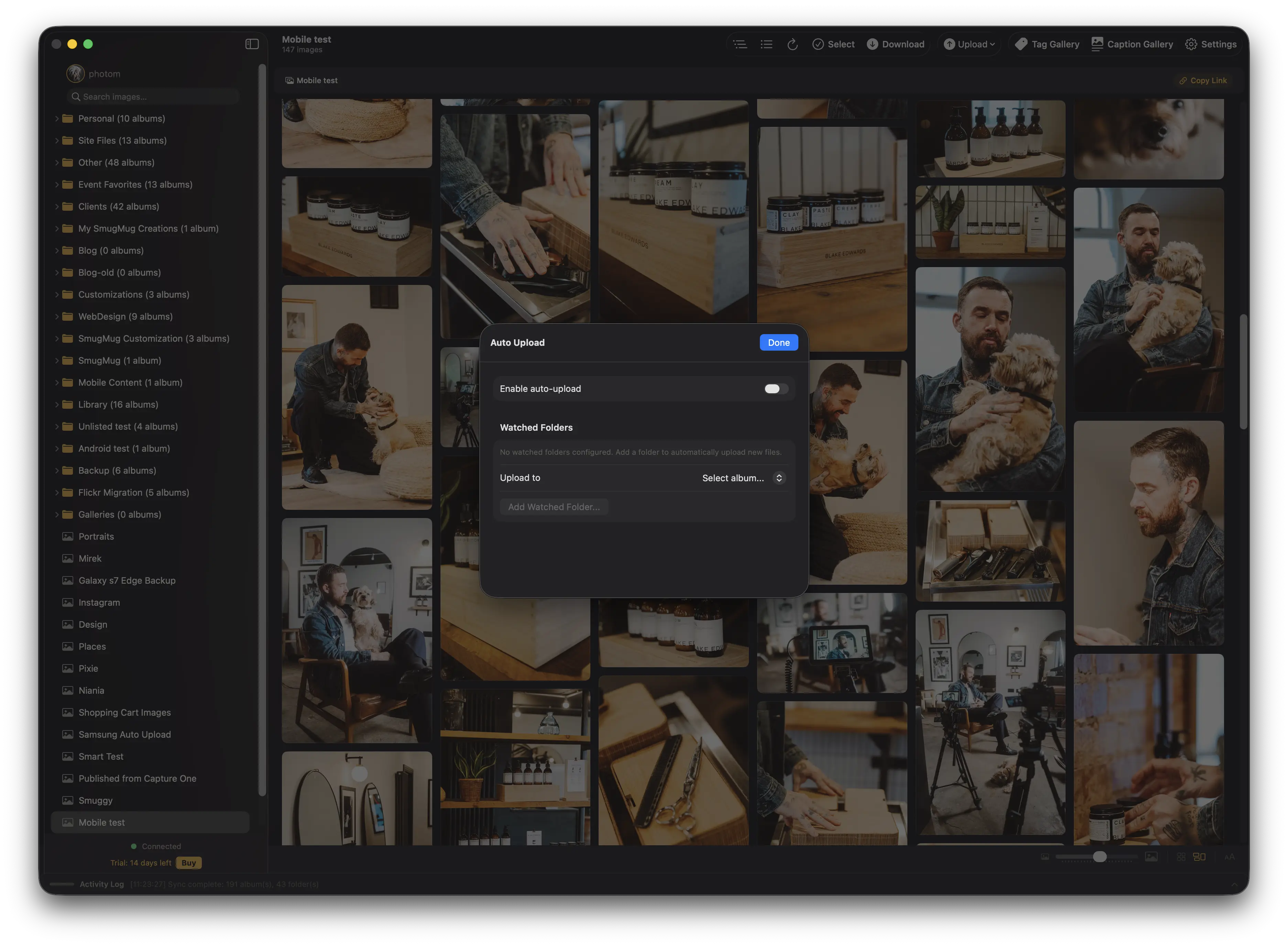
Open Auto Upload settings
Click the menu bar icon and select Auto Upload..., or access it from the main app window.
Enable auto-upload
Toggle Enable auto-upload on.
Choose a destination gallery
Select a SmugMug gallery from the Upload to picker. This is the gallery where new files will be uploaded.
Add a watched folder
Click Add Watched Folder... and select a folder on your Mac to watch.
Confirm the configuration
Review the watched folder and destination gallery in the Auto Upload sheet.
Whenever new photo or video files appear in the watched folder, they are automatically uploaded to the assigned SmugMug gallery.
Managing Watched Folders
- You can add multiple watched folders, each mapped to a different SmugMug gallery.
- Click the trash icon next to any watched folder to remove it.
- Toggle auto-upload off to pause all watched folders without removing them.
For uploading existing files or entire folder structures, see the Uploading guide instead.
How to Migrate to SmugMug from Google Photos or Flickr
Transfer your entire photo library from Google Photos (via Takeout) or Flickr to SmugMug using Folio, preserving albums, metadata, and folder structure.
Folio Settings Reference
Complete reference for all Folio settings — General, Account, AI, License, and Updates tabs.