Getting Started with Folio for macOS
Install Folio, set up your SmugMug API keys, and connect your account with the step-by-step setup wizard.
Folio is a native macOS app for managing your SmugMug photography portfolio. This guide walks you through installing Folio, connecting your SmugMug account, and completing the setup wizard so you can start browsing and managing your galleries.
System Requirements
- macOS 13 (Ventura) or later
- A Mac with Apple Silicon (M1 or later)
- A SmugMug account with API access
Installing Folio
Download the installer
Visit customsmug.com/folio and download the .dmg installer file.
Drag Folio to Applications
Open the downloaded .dmg file and drag Folio into your Applications folder.
Open Folio
Launch Folio from Applications or Launchpad.
On first launch, macOS may ask you to confirm that you want to open the app. Click Open to continue.
Getting Your SmugMug API Keys
Before running the setup wizard, you need an API key and secret from SmugMug. These let Folio communicate with your account securely.
Open the SmugMug API developer page
Go to api.smugmug.com/api/developer/apply and log in with your SmugMug account.
Fill out the application form
Complete the form with the following values:
- Application Name: Folio
- Type: Application
- Platform: Desktop
- Use: Personal use
Submit and copy your credentials
Click Submit. SmugMug will display your API Key and API Secret. Copy both values and keep them somewhere safe.
Treat your API Key and API Secret like passwords. Never share them publicly or include them in screenshots.
The Setup Wizard
When you first open Folio, the setup wizard guides you through six steps.
Step 1 — License / Trial
You can either start a free trial or activate an existing license key.
To start a 14-day free trial: Click Start Free Trial. You get full access to all features for 14 days.
To activate a license key: Enter your key and click Activate. The license is verified immediately.
If you purchased a license, check your email for a message from Lemon Squeezy containing your license key. You can also click the activation link in that email to activate automatically.
To purchase a license: Click the Purchase License link in the wizard, or visit customsmug.com/folio.
Step 2 — Welcome
A brief introduction to Folio. Click Get Started to continue.

Step 3 — API Credentials
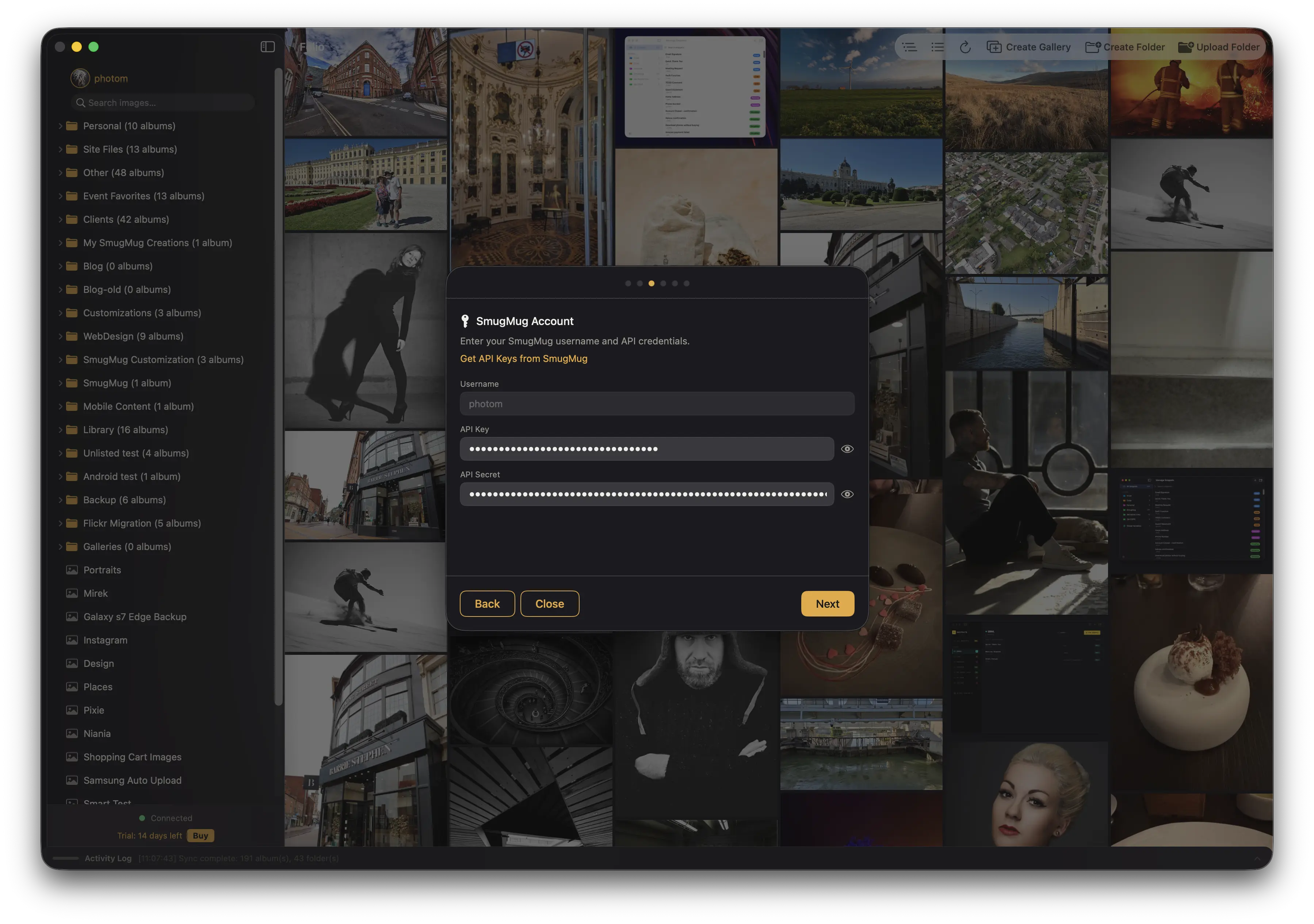
Enter the following three values, all of which are required:
- Username — Your SmugMug URL username (the name that appears in your SmugMug site URL)
- API Key — The key you copied from SmugMug
- API Secret — The secret you copied from SmugMug
Click the eye icon next to each field to reveal or hide the entered value.
Step 4 — Connect to SmugMug (OAuth)
Start the authorization
Click Connect to SmugMug. Your default browser opens to the SmugMug authorization page.
Authorize Folio
Log in to SmugMug (if not already logged in) and click Allow to grant Folio access to your account.
Copy the verification code
After authorizing, SmugMug displays a verification code. Copy it.
Enter the code in Folio
Switch back to Folio, paste the verification code, and click Submit. A green checkmark confirms the connection was successful.
Step 5 — AI Features (Optional)
Toggle Enable AI-powered metadata on or off. If enabled, choose a provider:
- Claude — Requires an API key from console.anthropic.com. Photos are sent to Anthropic for processing.
- Apple Intelligence — Requires macOS 26 or later. All processing happens on-device.
You can skip this step and configure AI features later in Settings. For a detailed walkthrough, see AI-Powered Metadata.
Step 6 — All Set!
Click Start Browsing to launch Folio and begin managing your SmugMug portfolio.
You can replay the setup wizard at any time from Settings > General > Replay Setup Wizard or from the Help menu. For more configuration options, see Settings.