Managing Galleries and Folders in Folio
Create galleries and folders, configure privacy and display settings, reorder photos with drag-and-drop, and move or delete images across your SmugMug library.
Folio gives you full control over how your SmugMug library is organized. You can create galleries and folders, adjust privacy and display settings, reorder photos with drag-and-drop, and move or delete images — all from within the app.
Creating a Gallery
Navigate to the target folder
In the sidebar, navigate to the folder where you want to create the gallery. If you want to create a gallery at the root level, stay at the top of your library.
Click Create Gallery
Click Create Gallery in the toolbar to open the gallery creation sheet.
Fill in gallery details
Enter the following information:
- Gallery Name (required) — The display name for your gallery.
- URL Name (optional) — A URL-friendly version of the name. If left blank, Folio generates one automatically.
- Description — A brief description of the gallery.
- Keywords — Comma-separated keywords for search and organization.
Configure additional settings
Expand the settings sections to customize privacy, downloads, sorting, display, sharing, commerce, and proofing options. See the full list of available settings below.
Click Create
Click Create to finalize the gallery. It appears immediately in your library.
Available Gallery Settings
| Section | Options |
|---|---|
| Privacy & Security | Privacy (Public/Unlisted/Private), Security Type (None/Password/Grant Access), Password, Right-Click Protection, Watermark |
| Downloads | Allow Downloads, Max Download Size |
| Sorting | Sort Method (Date Taken, Filename, etc.), Sort Direction (Ascending/Descending) |
| Display | Show EXIF Data, Show Geography, Hide Owner, Show Filenames, Square Thumbnails, Slideshow, Largest Size |
| Sharing | SmugMug Searchable, World Searchable, Share Button, Comments |
| Commerce | Printable, Packages, Commerce Lightbox, Boutique Packaging, Packaging Branding, Backprinting |
| Proofing | Digital Proofing, Proof Delay |
Commerce and Proofing options are only available depending on your SmugMug plan. If you don't see these sections, your current plan may not include them.
Creating a Folder
Navigate to the parent location
In the sidebar, navigate to the folder where you want to create a new subfolder, or stay at the root level.
Click Create Folder
Click Create Folder in the toolbar.
Enter the folder name
Type a name for the new folder in the dialog that appears.
Click Create
Click Create to add the folder to your library.
Editing Gallery Settings
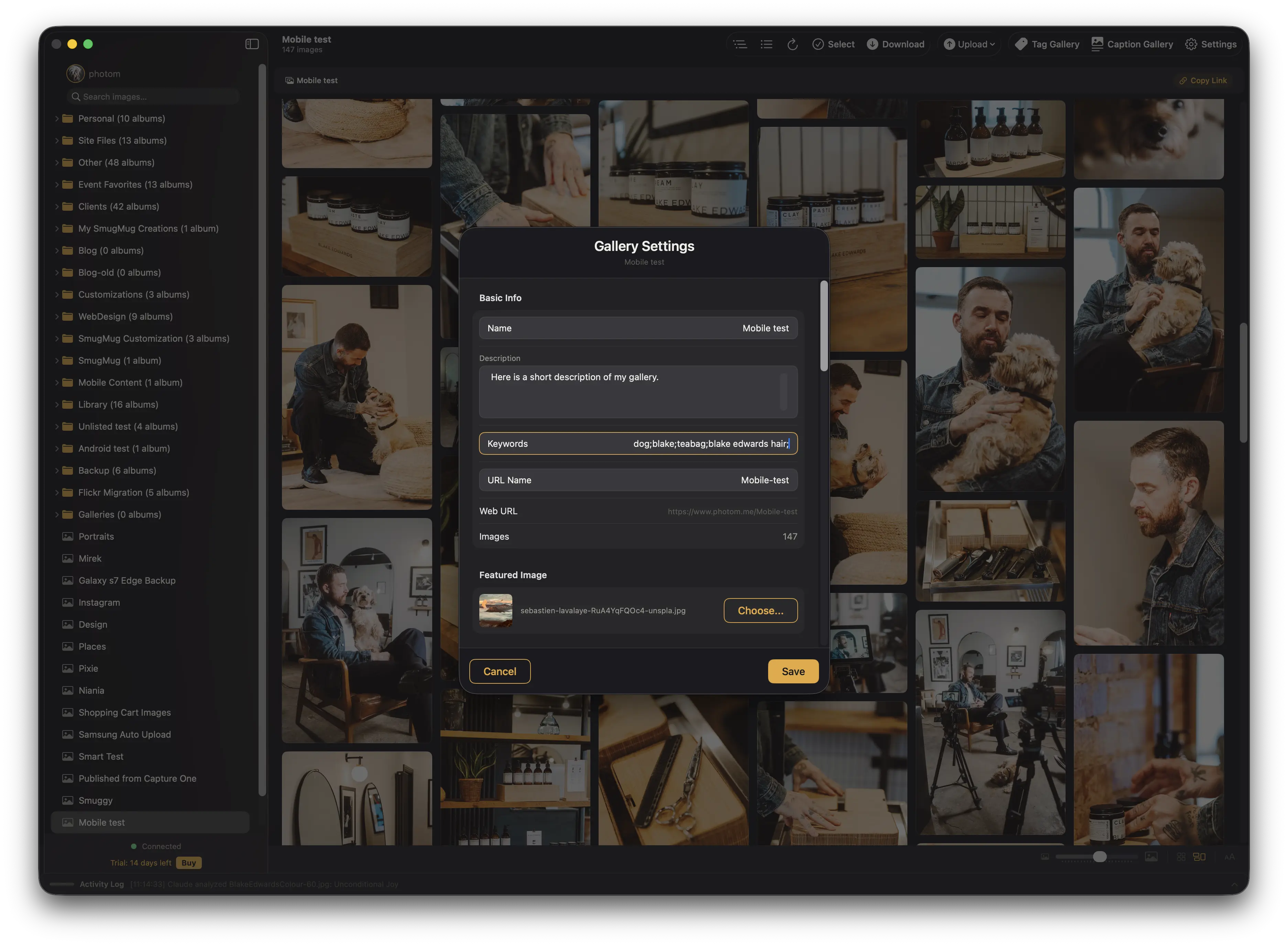
Select the gallery
Click on the gallery you want to configure in the sidebar.
Open settings
Click the Settings gear icon in the toolbar to open the gallery settings sheet.
Adjust settings
Modify any of the available options. In addition to the settings available during creation, you can also configure:
- Featured Image — Choose which photo appears as the gallery thumbnail.
- Guest Upload Key — Allow guests to upload photos to the gallery.
- Watermark / Printmark selection — Choose specific watermark or printmark presets.
Click Save
Click Save to apply your changes.
The Save button is only enabled when you have made changes. If it appears dimmed, no modifications have been detected.
Editing Folder Settings
To edit a folder's settings, select the folder in the sidebar and click the Settings gear icon. You can adjust:
- Name and URL Name
- Description and Keywords
- Privacy & Security (Public/Unlisted/Private, password protection)
- Searchability (SmugMug Searchable, World Searchable)
- Sorting (Sort Method, Sort Direction)
Reordering Photos
Switch to grid layout
Make sure you are viewing the gallery in grid layout. Drag-and-drop reordering is not available in masonry layout.
Drag a photo to a new position
Click and hold a thumbnail, then drag it to the desired position in the grid.
Release to drop
Let go of the photo to place it. The new order is saved to SmugMug automatically.
To reorder multiple photos at once, enter Select Mode (see below), select the photos you want to move, then drag any one of the selected thumbnails — all selected photos move together.
Drag-and-drop reordering is only available in grid layout, not masonry. Switch layouts using the view toggle in the toolbar.
Using Select Mode
Click Select in the toolbar to enter Select Mode. This enables bulk actions on multiple photos:
- Click any thumbnail to select or deselect it.
- Select All to select every photo in the gallery.
- Download selected photos.
- Move selected photos to another gallery.
- Collect (copy) selected photos to another gallery.
- Delete selected photos.
Click Cancel to exit Select Mode and return to normal browsing.
Moving Photos
Enter Select Mode and choose photos
Click Select in the toolbar, then click the photos you want to move.
Click Move
Click Move in the toolbar to open the destination picker.
Choose a destination gallery
Browse your library and select the gallery where you want the photos to go.
Click Move to confirm
Click Move to transfer the photos. They are removed from the current gallery and added to the destination.
Collecting (Copying) Photos
Enter Select Mode and choose photos
Click Select in the toolbar, then click the photos you want to copy.
Click Collect
Click Collect in the toolbar to open the destination picker.
Choose a destination gallery
Browse your library and select the gallery where you want copies of the photos.
Click Collect to confirm
Click Collect to copy the photos. The originals remain in the current gallery, and copies are added to the destination.
Deleting Photos
Enter Select Mode and choose photos
Click Select in the toolbar, then click the photos you want to delete.
Click Delete
Click Delete in the toolbar. A confirmation dialog appears.
Confirm deletion
Review the confirmation dialog and click Delete to proceed.
Deleting photos is permanent and cannot be undone. Photos are removed from SmugMug entirely, not just from the current gallery.
How to Upload Photos and Videos to SmugMug with Folio
Upload files from Finder or Apple Photos, import entire folder structures, handle duplicates with skip or replace options, and track upload progress with detailed reports.
Gallery Presets
Apply saved gallery settings — privacy, sorting, watermarks, downloads, and more — to any gallery in one click using album templates from your SmugMug account.