Folio Settings Reference
Complete reference for all Folio settings — General, Account, AI, License, and Updates tabs.
Open Folio settings with Cmd+, or from the Folio menu. Settings are organized into five tabs.
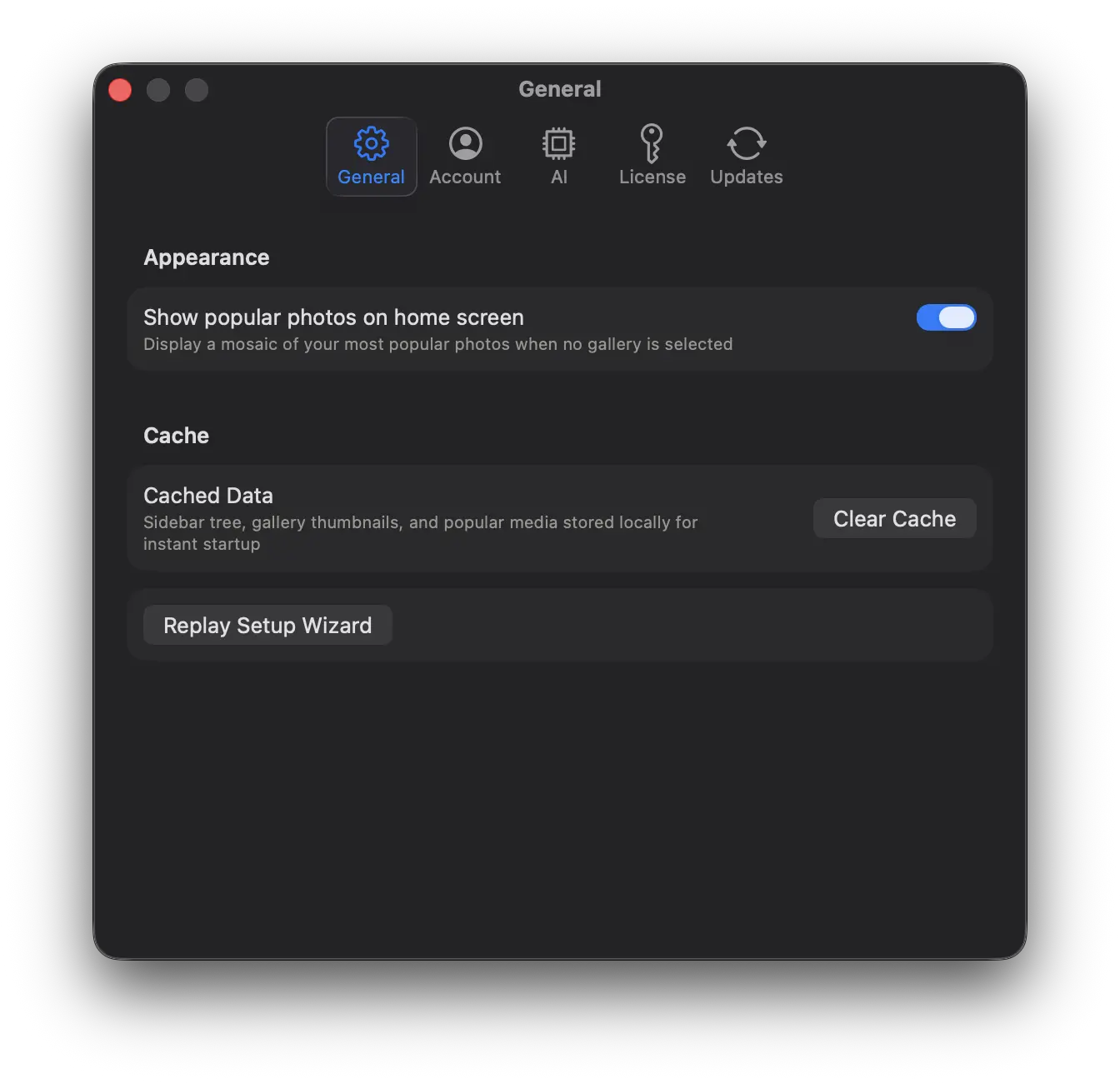
General
- Show popular photos on home screen — Toggle the Popular Media Wall that appears when no gallery is selected
- Clear Cache — Remove locally cached data (sidebar tree, gallery thumbnails, popular media). Useful if you notice stale data.
- Replay Setup Wizard — Walk through the initial setup again. Also available from the Help menu.
Account
- API Credentials — View or update your SmugMug API Key, API Secret, and Username
- Connection Status — Shows whether Folio is connected to SmugMug
- Re-authenticate — Re-connect to SmugMug (useful if your session expires)
- Log Out — Disconnect from SmugMug and clear stored credentials
AI
- AI-powered titles, captions & tags — Enable or disable AI metadata features
- Provider — Choose between Claude and Apple Intelligence
- API Key — Enter or update your Claude API key
For detailed AI setup instructions, see AI-Powered Metadata.
License
- Status — Shows your current license state: Active, Trial (with days remaining), Offline Grace, Expired, or Not Activated
- Activate — Enter a license key to activate
- Purchase License — Opens the Folio purchase page
- Deactivate This Mac — Remove the license from this Mac (frees up an activation slot if you're switching machines)
Each license allows up to 3 Mac activations. Use Deactivate This Mac before switching to a new machine to free up a slot.
Updates
- Check for updates automatically — Folio periodically checks for new versions
- Current Version — Shows the installed version and build number
- Check for Updates Now — Manually check for available updates
For initial setup, see the Getting Started guide.