How to Back Up Your Entire SmugMug Library with Folio
Download every photo and video from your SmugMug account in one operation. Includes smart resume, metadata export, and disk space management.
Folio can download your entire SmugMug account — every photo and video from every gallery — in one operation.
Starting a Backup
Open Backup Account
Go to File > Backup Account (or press Cmd+Shift+B). This option is also available from the menu bar icon.
Review backup information
Folio displays a confirmation sheet explaining that the backup will download everything from all galleries. Large libraries may take a long time and require significant disk space.
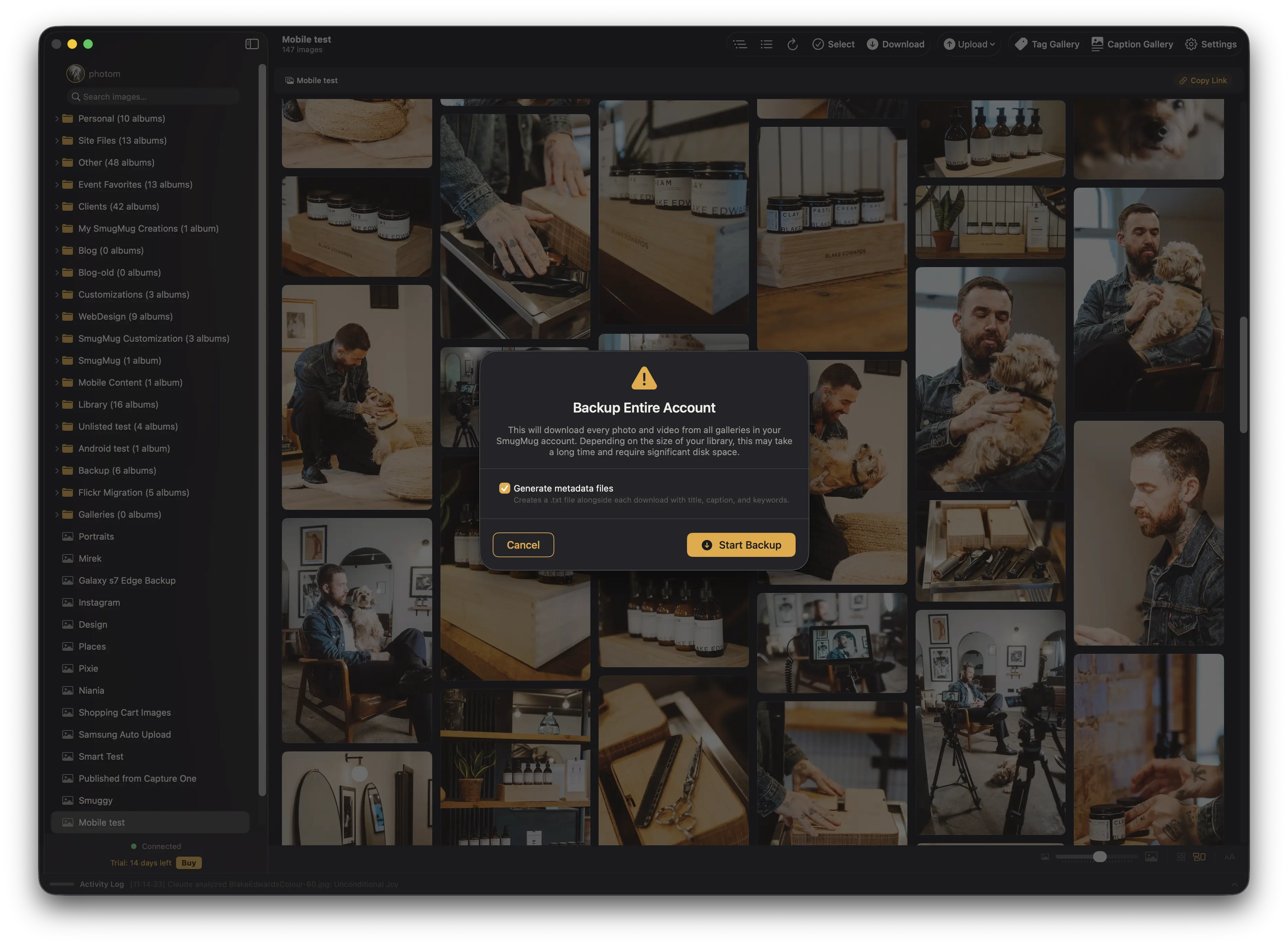
Configure metadata export
Optionally toggle Generate metadata files to save each photo's title, caption, and keywords alongside the downloaded file.
Start the backup
Click Start Backup.
Choose a destination folder
Select the folder where Folio should save your backup. This folder will contain your full SmugMug library structure.
How It Works
- Folio fetches a list of every gallery in your account
- Files are downloaded in original quality, gallery by gallery
- Up to 3 files download simultaneously
- Progress is shown in the toolbar and menu bar
Folder Structure
Folio preserves your SmugMug gallery structure on disk:
Backup Folder/
  Photography/
    Landscapes/
      Mountains/
        summit-sunset.jpg
        alpine-lake.jpg
      Beaches/
        tropical-shore.jpg
    Portraits/
      Client-Sessions/
        session-001.jpg
Metadata Files
When Generate metadata files is enabled, each photo gets a companion .txt file containing its SmugMug metadata:
Title: Summit Sunset
Caption: Golden hour light painting the mountain peaks above the alpine valley.
Keywords: sunset, mountains, landscape, golden hour, alpine
Disk Space Check
Before starting, Folio estimates the total disk space required for the backup. If your destination drive does not have enough free space, a warning dialog is shown with the estimated size and a choice to continue or cancel.
Resuming a Backup
Start a backup using the same destination
Open File > Backup Account and select the same destination folder you used previously.
Folio detects previously downloaded files
Folio scans the destination folder and identifies files that have already been downloaded.
Only new files are fetched
Folio skips previously downloaded files and fetches only the ones that are missing.
Folio verifies existing files using checksums to ensure completeness and integrity.
Cross-Album Duplicates
If the same photo appears in multiple galleries, Folio downloads it once and creates a hard link for each additional gallery location. This keeps the backup organized while saving disk space.
For very large libraries, consider running backups overnight to avoid interruptions.
For downloading individual galleries instead of your entire account, see Downloading.
Sharing Photos from Folio
Share photos in any available size by copying direct URLs or saving specific resolutions to disk from the Folio photo viewer.
How to Migrate to SmugMug from Google Photos or Flickr
Transfer your entire photo library from Google Photos (via Takeout) or Flickr to SmugMug using Folio, preserving albums, metadata, and folder structure.