How to Migrate to SmugMug from Google Photos or Flickr
Transfer your entire photo library from Google Photos (via Takeout) or Flickr to SmugMug using Folio, preserving albums, metadata, and folder structure.
Folio can import your photo library from other services into SmugMug. Currently supported sources are Google Photos and Flickr. To start a migration, go to File > Migrate From... (Cmd+Shift+M).
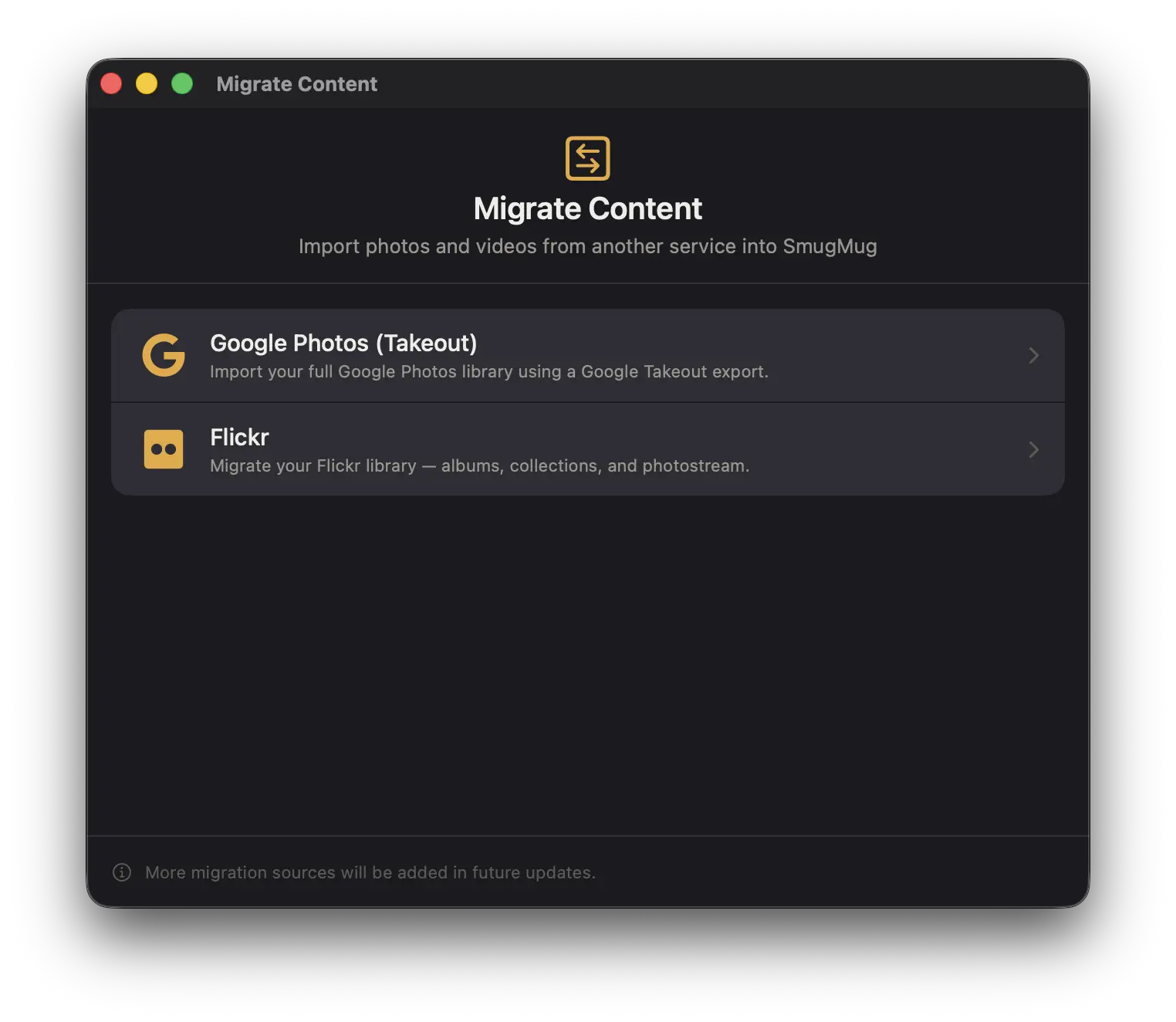
Migrating from Google Photos
Export your Google Photos library
- Go to takeout.google.com
- Click Deselect all, then select only Google Photos
- Click Next step
- Choose your export options:
- Delivery method: Send download link via email
- Frequency: Export once
- File size: Largest available (50 GB)
- Click Create export — wait for Google to prepare your archive (this can take hours or even days depending on library size)
- Download the
.zipfile(s) from the email link Google sends you - Extract the zip file(s) to a folder on your Mac
Import into SmugMug via Folio
- Open Folio and go to File > Migrate From... (Cmd+Shift+M)
- Select Google Photos (Takeout)
- Click Select "Google Photos" Folder...
- Navigate to the extracted Takeout folder and select the Google Photos subfolder
- Folio scans the folder and builds a migration plan
- Review the plan — you will see a preview of the folder and gallery structure that will be created on SmugMug
- Click Start
What happens during migration
- A Google Photos Migration folder is created on your SmugMug account (set to Private by default)
- Each Google Photos album becomes a SmugMug gallery
- Photos not in any album are placed into an Unsorted Photos gallery
- Metadata restoration — Folio reads JSON sidecar files from your Google Takeout export and patches titles, descriptions, people tags (as keywords), GPS coordinates, and dates onto the uploaded SmugMug images. Per-gallery progress is shown during patching. Google-edited photos (e.g.
IMG_1234-edited.jpg) automatically inherit metadata from the original file's sidecar when no dedicated sidecar exists - Albums with 4,990 or more photos are automatically split into parts
If your Google Takeout export contains multiple zip files, extract and import them one at a time. Folio adds each batch to the same "Google Photos Migration" folder.
Metadata restoration is enabled by default. To turn it off, open the migration config view before starting and toggle Restore metadata from Google Takeout off.
Migrating from Flickr
Get Flickr API credentials
- Go to flickr.com/services/apps/create
- Choose Apply for a Non-Commercial Key
- Enter an app name and description (for example, "Folio Migration" and "Personal photo migration")
- Accept the terms and submit
- Copy the API Key and API Secret that Flickr displays
Connect and migrate
- Open Folio and go to File > Migrate From... (Cmd+Shift+M)
- Select Flickr
- Enter your Flickr API Key and API Secret
- Click Open Flickr Authorization...
- Your browser opens to the Flickr authorization page — click Allow
- Flickr displays a verification code — copy it
- Paste the code into Folio and click Verify
- Once connected, click Scan Library
- Folio scans your Flickr account and builds a migration plan
- Review the plan, then click Start
What happens during migration
- A Flickr Migration folder is created on your SmugMug account (set to Private by default)
- Flickr collections become SmugMug folders
- Flickr albums (photosets) become SmugMug galleries
- Photostream photos that are not in any album are placed into a Photostream gallery
- For each gallery, Folio downloads originals from Flickr, uploads them to SmugMug, and preserves metadata including titles, descriptions, and tags
- Temporary files are cleaned up after each gallery finishes uploading
- Large albums with 4,990 or more photos are automatically split into parts
Flickr API credentials are only used for the current migration session and are not stored by Folio.
How to Back Up Your Entire SmugMug Library with Folio
Download every photo and video from your SmugMug account in one operation. Includes smart resume, metadata export, and disk space management.
Auto Upload — Automatically Sync Folders to SmugMug
Set up watched folders on your Mac that automatically upload new photos and videos to your SmugMug galleries.