The Folio Interface — Sidebar, Toolbar, and Navigation
Explore the Folio interface including the sidebar folder tree, toolbar controls, menu bar extra, and breadcrumb navigation.
Once connected to SmugMug, Folio presents a clean interface designed for photographers. This guide covers the main areas of the app — the sidebar, toolbar, home screen, menu bar extra, activity log, and breadcrumb navigation.
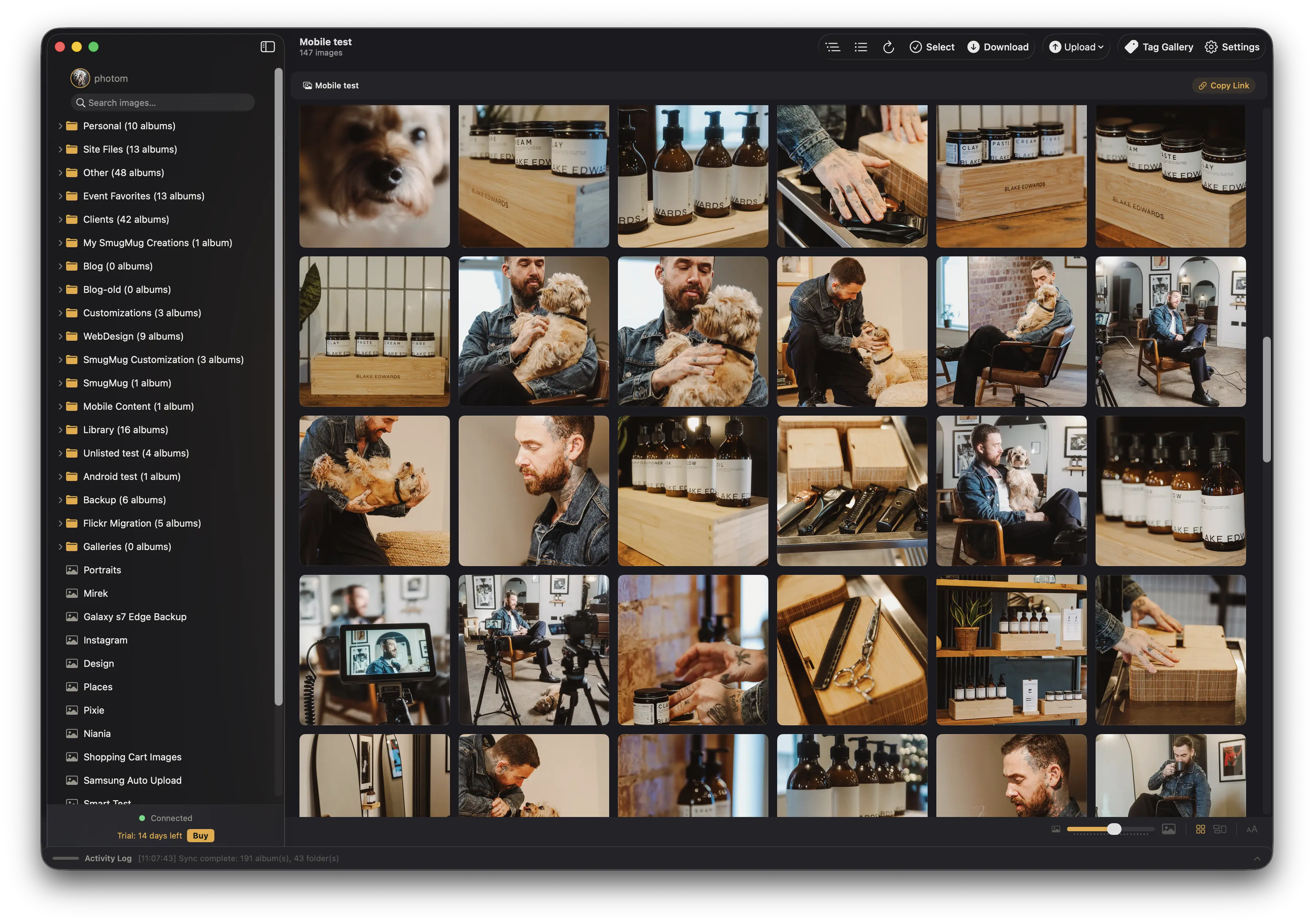
Sidebar
The left panel shows your SmugMug account structure as a collapsible folder and gallery tree.
- Your profile — your username and photo appear at the top. Click it to return to the home screen.
- Search — a search field below your profile lets you search your entire account.
- Folders — displayed with a folder icon. Click the disclosure triangle to expand and reveal subfolders or galleries.
- Galleries — displayed with a photo icon and an image count badge. Click a gallery to view its contents.
- Connection status — a colored dot at the bottom of the sidebar indicates your connection state: green means connected, amber means authenticating, and gray means disconnected.
- Trial banner — if you are on a free trial, the sidebar shows your remaining days along with a link to purchase a license.
Sidebar Controls
The toolbar includes three controls for managing the sidebar:
- Expand All — opens every folder in the tree
- Collapse All — closes all folders and scrolls back to the top
- Refresh — reloads the folder tree from SmugMug
The sidebar auto-syncs your folder tree whenever you return to Folio after being away for two or more minutes.
Home Screen
When no gallery is selected, the main area displays the Popular Media Wall — a mosaic of your most popular photos across SmugMug. Click any photo to jump directly to its gallery.
You can toggle this feature in Settings under General > Show popular photos on home screen.
Toolbar
The toolbar changes dynamically based on what you have selected.
| Context | Available Actions |
|---|---|
| Root level (no selection) | Create Gallery, Create Folder, Upload Folder |
| Folder selected | Download All, Upload Folder, Create Gallery, Create Folder, Settings |
| Gallery selected | Select, Download, Upload, Filter, Tag Gallery, Caption Gallery, Settings |
| Select mode | Select All, Download, Move, Collect, Delete, Cancel |
| Photo viewer | Back, Info, Share |
During active operations such as downloads or uploads, additional Pause, Resume, and Stop controls appear in the toolbar.
Menu Bar Extra
Folio places a small icon in the macOS menu bar (next to the clock area). The icon changes to reflect what the app is doing:
- Camera aperture — Folio is idle
- Up arrow — an upload is in progress
- Down arrow — a download is in progress
Click the icon to open a quick-access panel that shows:
- Your connection status
- Upload and download progress
- Pause, Resume, and Stop controls for active operations
- Quick links to open Folio, start a backup, configure auto-upload, or open migration
Activity Log
The bottom of the Folio window contains a collapsible drawer with two tabs: Activity Log and Report.
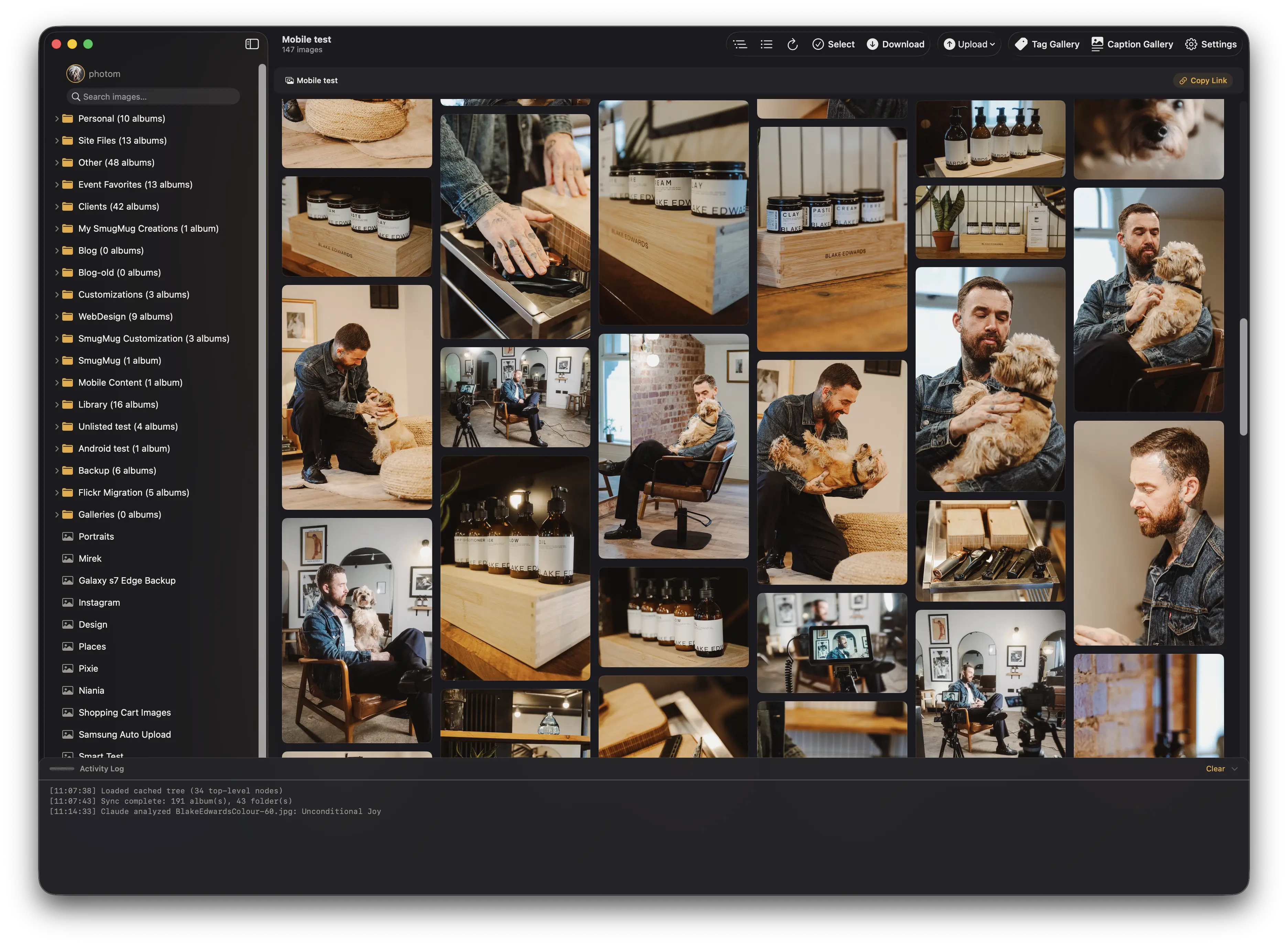
Activity Log Tab
The Activity Log tab displays a real-time, scrolling log of operations as they happen — downloads, uploads, backups, and migrations. Each entry is timestamped so you can follow the progress of long-running tasks.
Report Tab
When an operation completes, the Report tab shows a summary with a three-tier status indicator:
- Success (green) — everything completed without issues
- Partial (amber) — the operation finished but some items were skipped or encountered non-critical errors
- Failure (red) — the operation could not complete due to a critical error
Click any report entry to expand it and see a file-by-file breakdown.
Auto-Open Behavior
Reports auto-open the Activity Log drawer when issues are detected during an operation. If everything succeeds, the drawer stays in its current state (open or closed).
Disk Persistence
Activity logs are saved to disk as daily log files at:
~/Documents/Folio/logs/smugmug_YYYY-MM-DD.logThese files are plain text and can be opened in any text editor. They are useful for troubleshooting issues or providing context when contacting support.
Breadcrumb Navigation
When viewing a folder or gallery, a breadcrumb trail appears at the top of the main area (for example, Home > Landscapes > Mountains > Summit Gallery). Click any segment to navigate directly to that level.
A link icon next to the breadcrumb copies the SmugMug web URL for the current folder or gallery to your clipboard — useful for quickly sharing a link.
For more on navigating galleries and viewing photos, see Browsing Galleries.
Getting Started with Folio for macOS
Install Folio, set up your SmugMug API keys, and connect your account with the step-by-step setup wizard.
Browsing Galleries and Viewing Photos in Folio
View your SmugMug galleries in grid or masonry layout, navigate the full-screen photo viewer, edit metadata, search with advanced filters, and explore your photos on an interactive map.