How to Expand Text in Journal Gallery Style
Fix truncated titles, captions, and keywords in SmugMug's Journal gallery style to use the full available width.
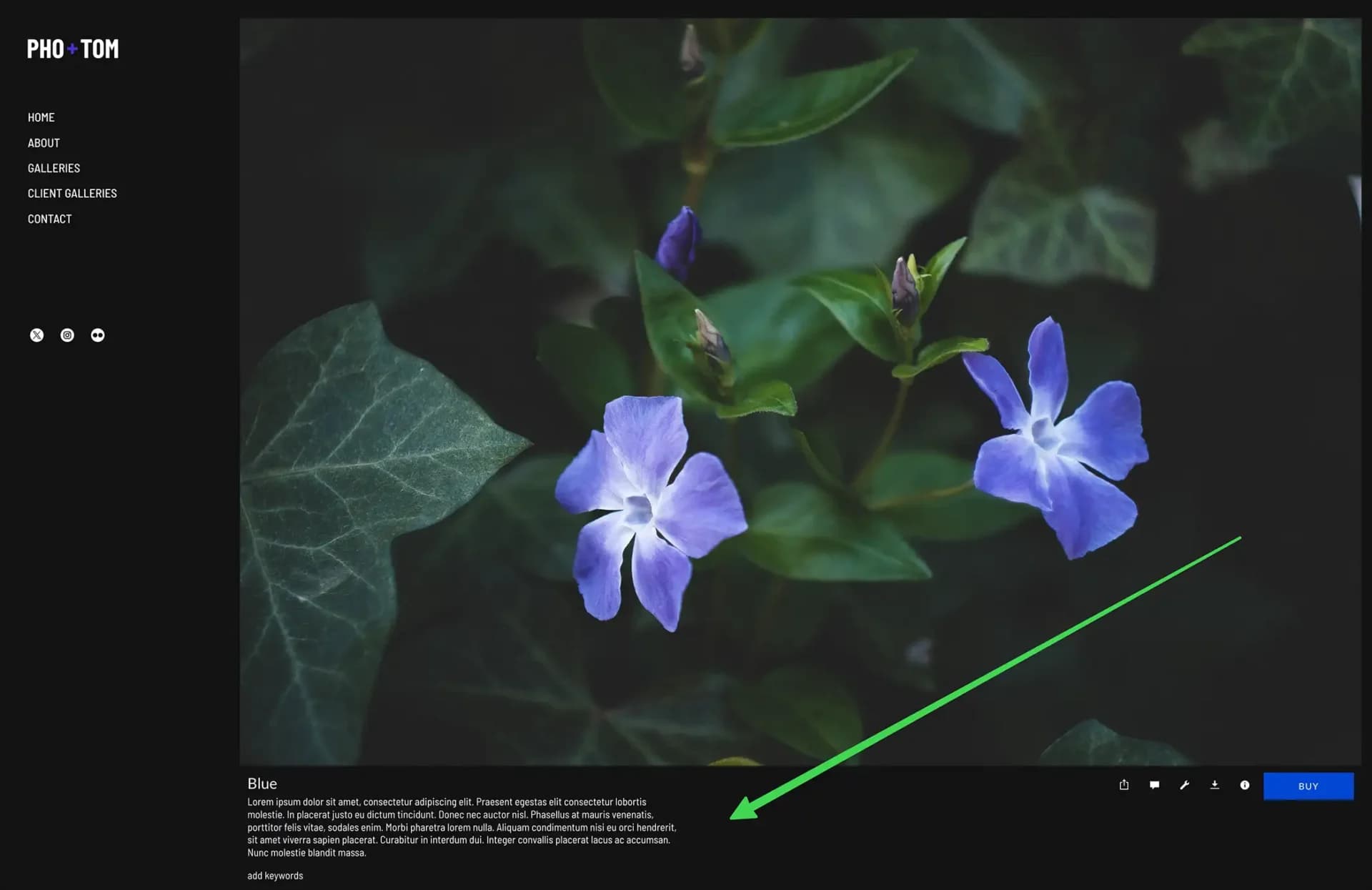
The Journal gallery style in SmugMug offers a story-like layout for your images. However, titles, captions, and keywords are truncated by default, cutting off text that could fit in the available space.
The problem
Text in Journal galleries gets cut off even when there's room to display more:
The solution
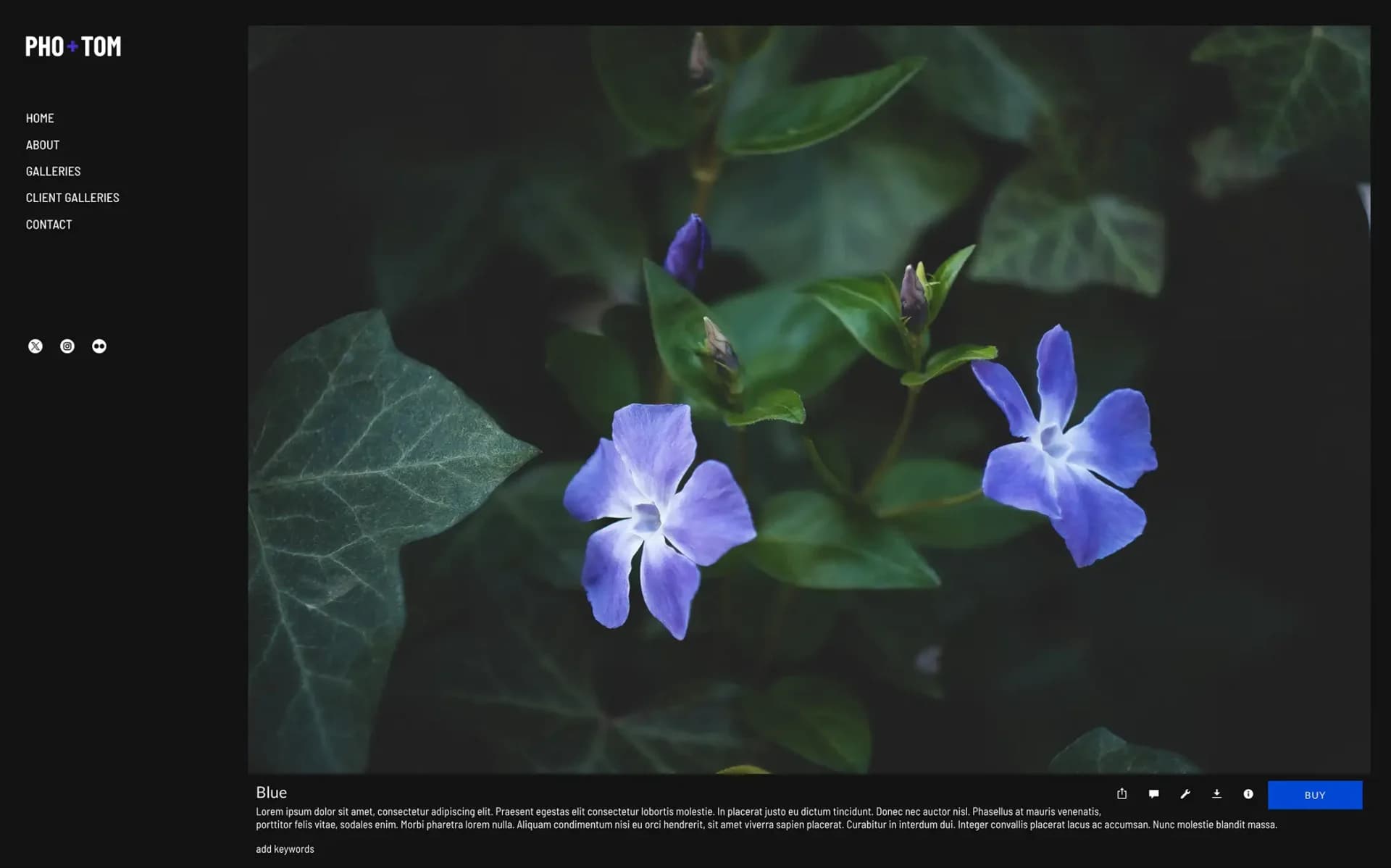
This CSS allows titles, captions, and keywords to use the full horizontal width:
/* Expand titles, captions and keywords in Journal gallery style */
.sm-gallery-journal .sm-journal-inlineedit {
    max-width: 100% !important;
}

.sm-gallery-journal .sm-gallery-images .sm-tile > .sm-tile-info p {
    max-width: 100% !important;
}
How it works
- The first rule expands the inline edit area (titles and captions)
- The second rule expands the paragraph elements in tile info (keywords and descriptions)
max-width: 100%allows the text to fill all available horizontal space
Where to add the code
Add a CSS content block directly to your Journal gallery, or to the All Galleries section if you use Journal style across multiple galleries.
This CSS specifically targets Journal galleries and won't affect other gallery styles on your site.
Additional text styling
You can combine this with other text customizations:
/* Expand and style Journal gallery text */
.sm-gallery-journal .sm-journal-inlineedit {
    max-width: 100% !important;
}

.sm-gallery-journal .sm-gallery-images .sm-tile > .sm-tile-info p {
    max-width: 100% !important;
    font-size: 16px;
    line-height: 1.6;
    color: #666;
}How to Hide Gallery Elements on SmugMug
Use CSS to hide gallery titles, descriptions, source gallery links, and the Buy Multiple Photos button from your SmugMug galleries.
How to Change Font Sizes in SmugMug Lightbox View
Customize the size of titles and captions displayed in SmugMug's lightbox view, including both the bottom overlay and sidebar metadata.