How to Sell Services on SmugMug Using PayPal
Create a pricing widget to sell photography services, packages, or non-print products on your SmugMug website using PayPal Buy Now buttons.
SmugMug's built-in commerce features are designed for selling prints and digital downloads. If you want to sell services like photo sessions, editing packages, or other non-product offerings, you can create a custom pricing widget using PayPal buttons.
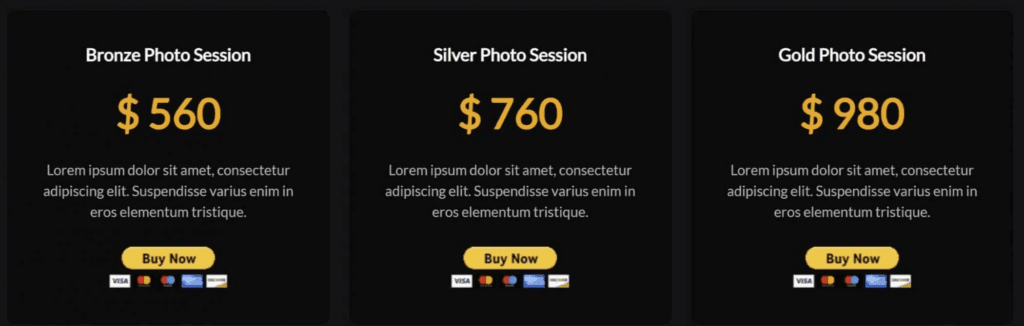
What you'll create
A professional pricing grid where visitors can:
- See your service packages at a glance
- Read descriptions of what's included
- Click to purchase directly via PayPal
This tutorial uses PayPal as the payment processor. Currently, other payment gateways aren't supported within SmugMug's HTML content blocks.
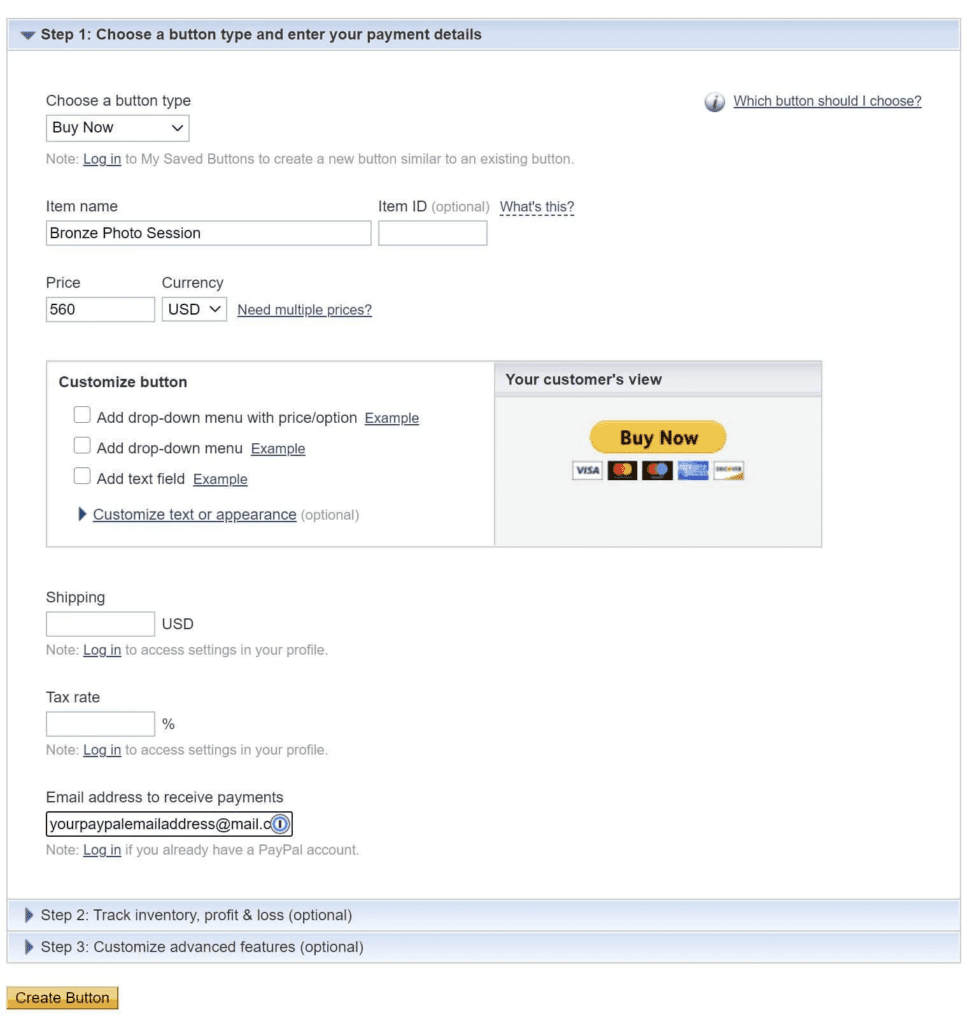
Generate PayPal buttons
- Go to PayPal Button Generator
- Choose Buy Now button
- Configure your item:
- Item name (e.g., "Bronze Photo Session")
- Price
- Currency
- Click Create Button
- Copy the generated code
Repeat for each service package you want to offer.
Add an HTML content block
Navigate to the page where you want your pricing widget and add an HTML content block.
Add the HTML structure
In the HTML tab, paste this template:
<div class="container">
    <div class="pricing-container-wrapper">
        <h3 class="h3">Bronze Photo Session</h3>
        <h2 class="price">$560</h2>
        <p class="paragraph">
            Perfect for individuals and couples. Includes 1-hour session
            and 20 edited digital images.
        </p>
        <!-- Paste your first PayPal button code here -->
    </div>

    <div class="pricing-container-wrapper">
        <h3 class="h3">Silver Photo Session</h3>
        <h2 class="price">$760</h2>
        <p class="paragraph">
            Ideal for families. Includes 2-hour session, 40 edited images,
            and a 10x10 photo book.
        </p>
        <!-- Paste your second PayPal button code here -->
    </div>

    <div class="pricing-container-wrapper">
        <h3 class="h3">Gold Photo Session</h3>
        <h2 class="price">$980</h2>
        <p class="paragraph">
            The ultimate experience. Includes 3-hour session, unlimited
            images, album, and canvas print.
        </p>
        <!-- Paste your third PayPal button code here -->
    </div>
</div>
Replace the HTML comments with your PayPal button codes.
Add the CSS code
Switch to the CSS tab and paste:
/* Grid layout */
.container {
    display: grid;
    justify-content: center;
    grid-template-columns: 1fr 1fr 1fr;
    grid-column-gap: 16px;
    grid-row-gap: 16px;
}

/* Individual pricing cards */
.pricing-container-wrapper {
    display: flex;
    flex-direction: column;
    margin: 10px;
    padding: 10%;
    border-radius: 10px;
    border: 1px solid #191919;
    background-color: #0c0c0c;
}

/* Package title */
.h3 {
    margin-bottom: 0;
    color: #fff;
    text-align: center;
    font-weight: 700;
}

/* Price display */
.price {
    margin-top: 30px;
    margin-bottom: 30px;
    color: orange;
    font-size: 3rem;
    line-height: 3rem;
    font-weight: 700;
    text-align: center;
}

/* Description text */
.paragraph {
    margin-bottom: 28px;
    color: #b9b9b9;
    font-size: 1rem;
    line-height: 1.5rem;
    text-align: center;
}

/* Mobile responsiveness */
@media screen and (max-width: 991px) {
    .container {
        margin-right: 10px;
        margin-left: 10px;
    }
}

@media screen and (max-width: 767px) {
    .container {
        grid-template-columns: 1fr 1fr;
    }
}

@media screen and (max-width: 479px) {
    .container {
        grid-template-columns: 1fr;
    }
}
Light theme version
For websites with light backgrounds:
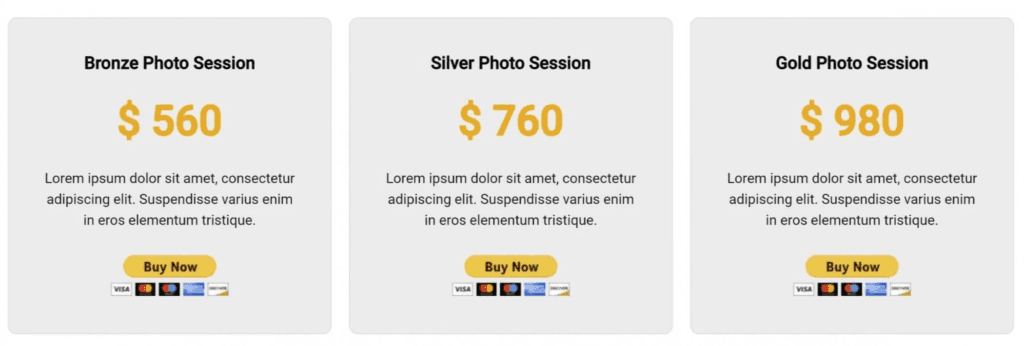
Replace the dark theme CSS with:
.pricing-container-wrapper {
    border: 1px solid #dfdfdf;
    background-color: #ececec;
}

.h3 {
    color: #050505;
}

.paragraph {
    color: #141414;
}
Customization options
Change the accent color
Modify the price color:
.price {
    color: #0066cc; /* Blue */
    color: #4ecdc4; /* Teal */
    color: #e74c3c; /* Red */
}
Add more or fewer packages
- To add a package: Copy a complete
<div class="pricing-container-wrapper">...</div>block - To remove: Delete one of the wrapper blocks
- Adjust
grid-template-columnsif you want 2 or 4 columns
Custom border styles
.pricing-container-wrapper {
    border: 2px solid orange;
    border-radius: 20px; /* More rounded */
}
Add hover effects
.pricing-container-wrapper {
    transition: transform 0.3s ease, box-shadow 0.3s ease;
}

.pricing-container-wrapper:hover {
    transform: translateY(-5px);
    box-shadow: 0 10px 30px rgba(0, 0, 0, 0.3);
}
Important notes
- PayPal buttons redirect customers to PayPal to complete payment
- Make sure prices in your HTML match the prices set in PayPal
- Test the purchase flow before publishing
- Consider adding a separate page for terms and conditions
How to Move the Add to Cart Icon Below Thumbnails
Reposition SmugMug's add to cart icon from the corner overlay to below the photo thumbnails for better visibility.
How to Rename Search Category Labels on SmugMug
Customize the search page category labels (Photos, Videos, Galleries, Folders, Pages) with your own text using CSS.